Start a form
Select Create form on the Forms page. The builder has a field list on the left, a live Preview, and three tabs of settings: Field details, Form settings and On submit.
The form builder
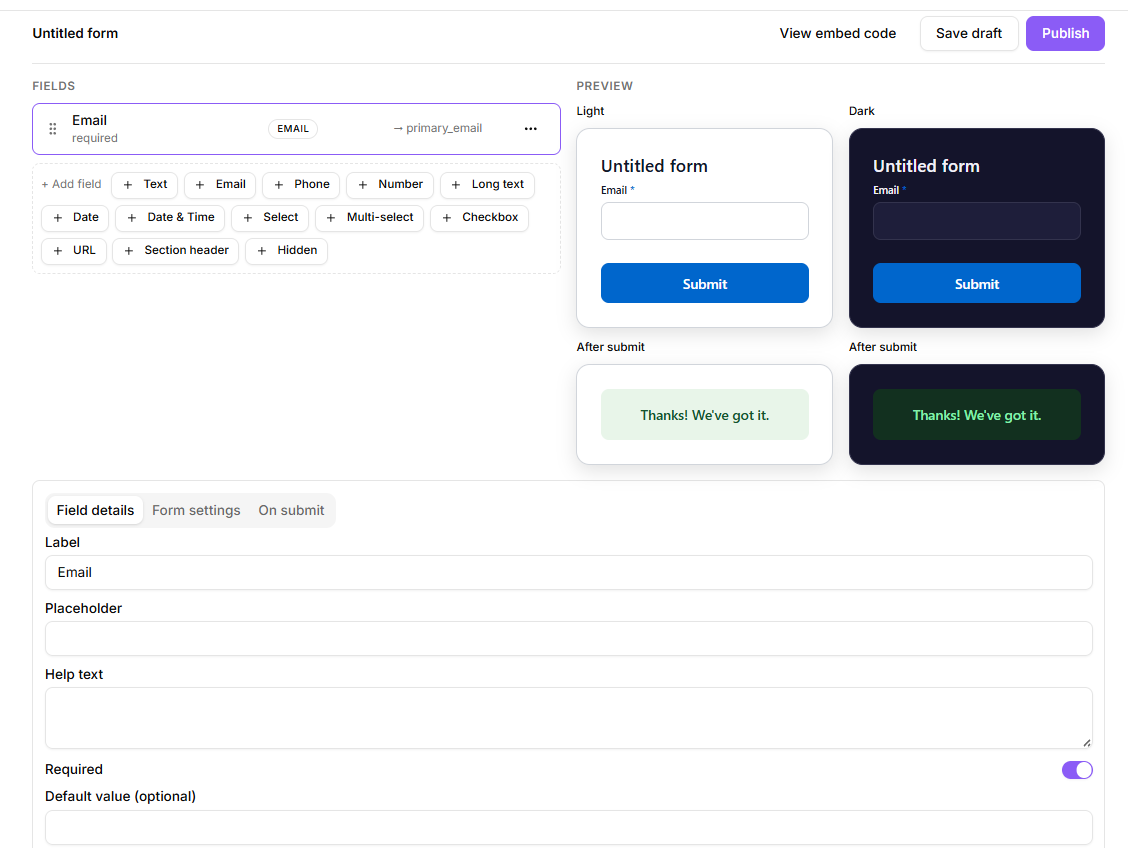
Add fields
Select + Add field, then pick a type:
Text, Long text, Number, Date, Date & Time, Checkbox, Select, Multi-select, Email, URL, Phone, Section header and Hidden.
Select a field to edit it. Each has a Label, a Placeholder, Help text and a Required switch. Select and Multi-select fields also take a list of Options, each with a value and a label.
Fields can be duplicated or deleted from their card in the list.
Map fields to contact data
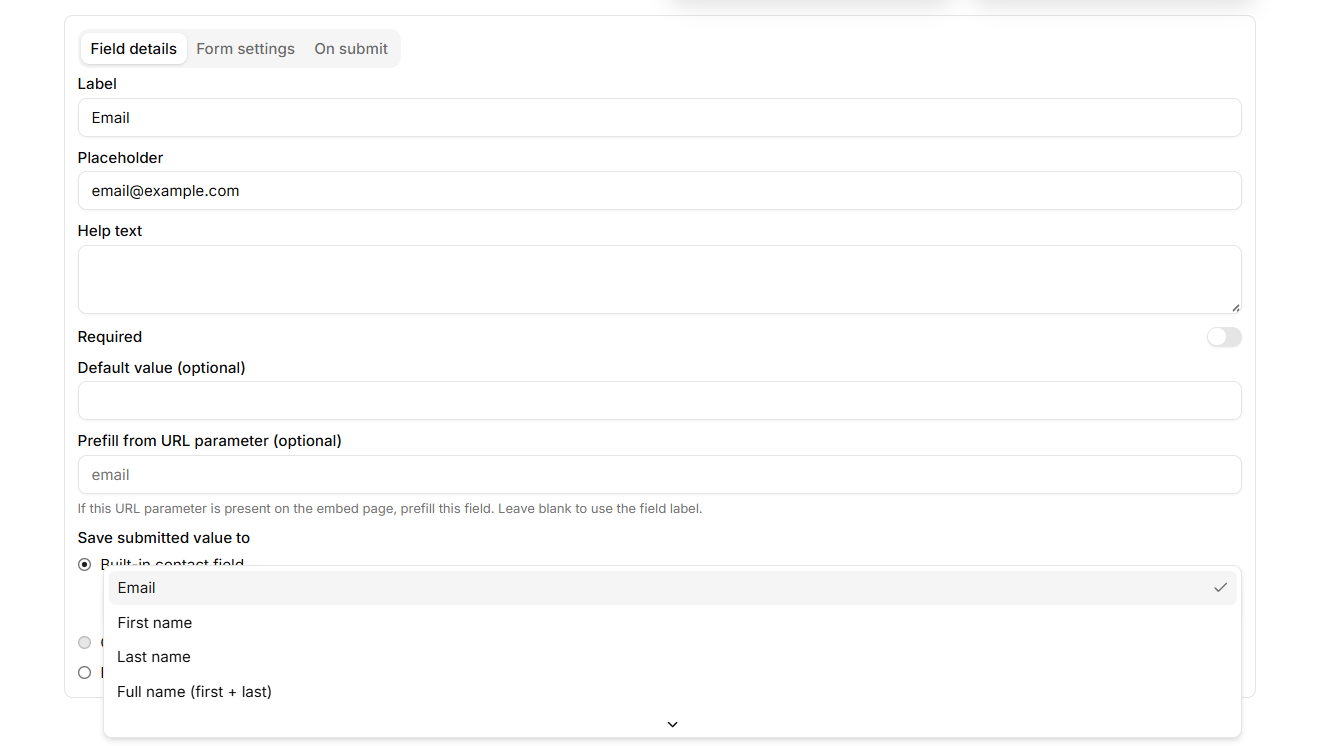
This is the step that makes a form useful rather than decorative. For each field, set Save submitted value to:
A built-in contact field: Email, First name, Last name, Full name (first + last), Phone, Company, City or Country.
A custom field you have defined.
Don't store the value, for questions you only want in the submission record.
Full name (first + last) is worth knowing about. Plenty of forms ask for a single "Your name" rather than two boxes, and mapping that one field to Full name splits what somebody types into first and last name on the contact record. It also works in reverse for prefilling: a Full name field arrives already composed from the first and last name KeyMetriq holds.
Map the email field. That is what attaches the submission to a contact.
Mapping a field to a contact field
Hidden fields
A hidden field captures context rather than input. Set Capture from to a URL parameter, a cookie, a JavaScript variable or a fixed value, then name the source. Use these to record which page or campaign a submission came from.
Prefilling
Any field can be prefilled from a URL parameter. Set Prefill from URL parameter on the field, and if that parameter is present on the page the form is embedded in, the field starts filled.
Style it
The Form settings tab covers appearance:
Description
Submit button label and whether to Show form title
Label style: above the field, inside as a placeholder, floating, or floating on focus
Help text position: Below field, Above field or Inside field (placeholder), deciding where a field's help text sits relative to the input. Inside quietly falls back to below when the label is already using the placeholder, so the two do not collide
Theme: Auto (matching each visitor's light or dark setting), Light or Dark
Accent color, Corners (sharp, rounded or pill) and Font
Transparent background, which drops the card and shadow so the host page shows through
Full width, which removes side padding so the form fills its container
What happens after submit
Choose Show message with your own text, or Redirect to URL.
Publish
Save draft keeps it out of sight; Publish makes it live. A published form shows as Published in the builder and Active in the list.