Get the snippet
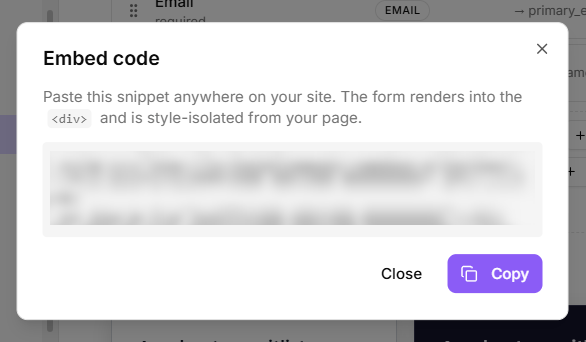
In the form builder, select View embed code. Copy the snippet and paste it anywhere on your site.
The embed snippet
Where it renders
The snippet includes a container element, and the form renders into it. The form is style-isolated from your page, so your site's CSS cannot leak in and break the layout, and the form's styling cannot leak out and affect your page.
That isolation is why the appearance options live in the builder rather than in your site's stylesheet. To restyle the form, change the theme, accent color, corners and font in Form settings.
Two settings help it sit naturally in your page:
Transparent background removes the card and shadow so the host page shows through.
Full width collapses the side padding so the form fills its container.
Spam protection
Once a form is public, it will get bot traffic. Three defenses:
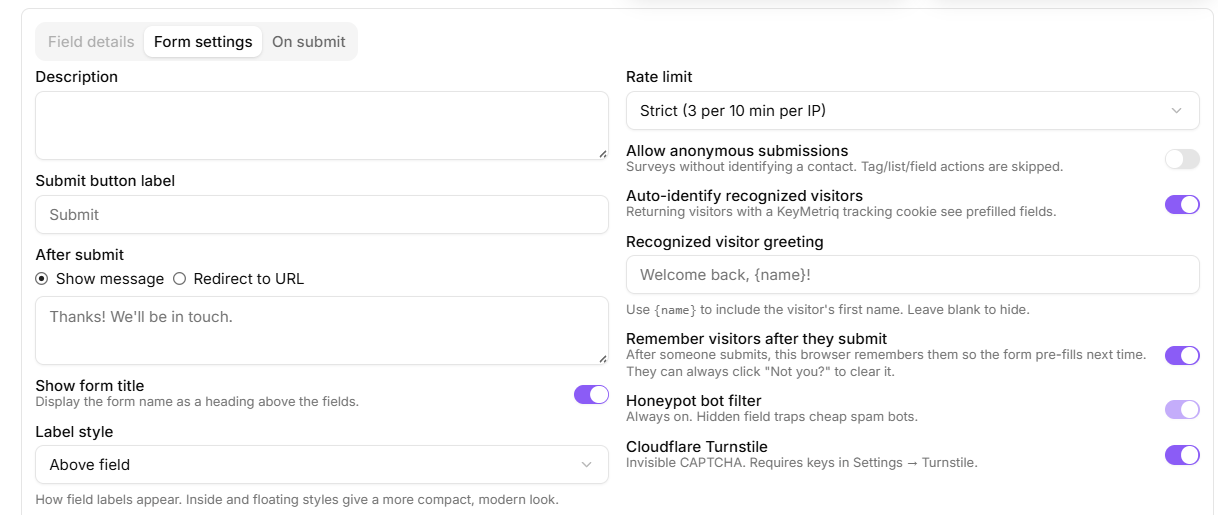
Honeypot bot filter is always on. It is a hidden field that cheap bots fill in and humans never see.
Rate limit: choose Strict (3 per 10 minutes per IP address), Moderate (10 per minute per IP address) or a Custom limit.
Cloudflare Turnstile, an invisible CAPTCHA. It needs keys configured first, under Settings, then Tracking, in the Privacy section of that page.
Start with Moderate and turn on Turnstile if spam gets through.
Recognized visitors
Three settings decide how the form treats people KeyMetriq already knows:
Auto-identify recognized visitors: returning visitors carrying a KeyMetriq tracking cookie see prefilled fields, so they do not retype what you already know.
Recognized visitor greeting: an optional line such as "Welcome back, Amy!". Leave it blank to hide it.
Remember visitors after they submit: once somebody submits the form, their browser remembers them, so it pre-fills the next time they meet it.
Auto-identification only works on pages where your tracking snippet is installed. See "Installing the tracking snippet" in Tracking & Analytics.
Remember visitors after they submit is on unless you turn it off. That is usually what you want, and it is worth understanding before you decide. The visitor is remembered in that browser only, and a Not you? control on the prefilled form clears it, which matters on a shared or family computer. Turn it off for a form where a fresh, empty form every time is the point, such as one people fill in on behalf of somebody else.
Anonymous submissions
Allow anonymous submissions lets people submit without identifying a contact, which is what you want for a survey. Note the tradeoff stated in the setting itself: tag, list and field actions are skipped for anonymous submissions, because there is no contact to apply them to.
Spam and identification settings
Before you go live
Publish the form, load the page it is embedded on, and submit it once yourself. Then check the form's Recent submissions to confirm the entry arrived and matched a contact.