What it brings in
HelpScout imports support conversations and customer satisfaction data. It is a support platform, so under most import modes it matches existing contacts rather than creating new ones. Only the "Everyone from all platforms" mode lets it create contacts.
Once connected, support history shows on the contact record under Conversations, and support metrics such as ticket counts, open tickets and tickets per month become available as segment conditions and contact columns.
Create an app
- In HelpScout, go to Manage, then Apps, then My Apps.
- Create an app for KeyMetriq.
- Copy the App ID and the App Secret.
Connect it
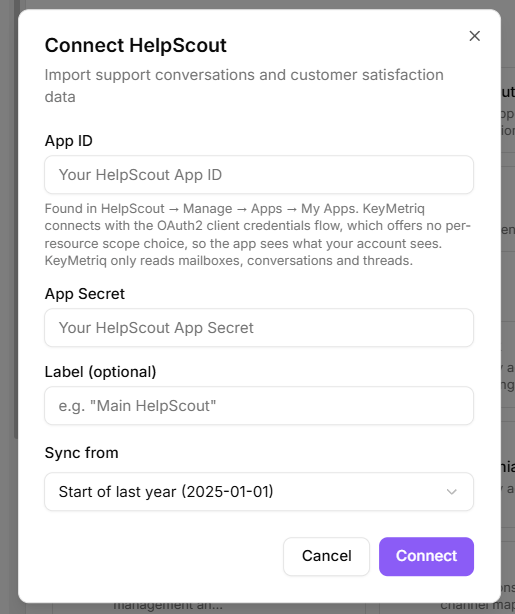
- Go to Settings, open Integrations, and select Add Integration.
- Choose HelpScout.
- Paste the App ID and App Secret.
- Optionally add a Label, for example "Main HelpScout".
- Connect.
Set up the webhook
HelpScout webhooks are manual, and there is one step people miss.
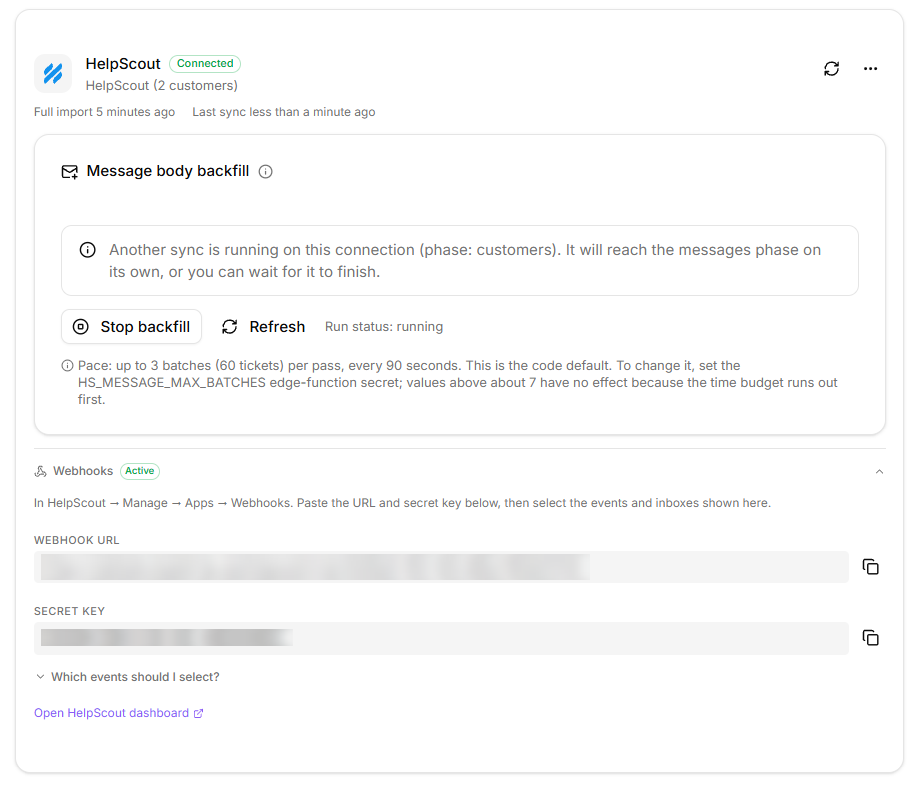
- Expand Webhooks on the HelpScout card in KeyMetriq to see the URL and secret key.
- In HelpScout, go to Manage, then Apps, then Webhooks.
- Paste the URL and the secret key.
- Select the events listed on the KeyMetriq card.
- Under Inboxes, tick every inbox you want tracked, usually all of them.
That last step is the one to check. Conversation events only fire for the inboxes you select, so an untick means a whole inbox silently never reaches KeyMetriq.
Checking it works
HelpScout webhooks are wired up by hand, so KeyMetriq has no button that tests them for you. The Webhooks section on the HelpScout card carries a badge instead. It reads Not configured until a webhook URL is stored and Active once it is. If events stop arriving it turns Stale and then Inactive, and a banner appears with the time of the last event and a How to reconnect button.
To confirm the setup worked, trigger a real event rather than waiting for the next ticket:
- In HelpScout, send a test conversation to one of the inboxes you ticked.
- Open that customer in KeyMetriq and check the conversation appears under Conversations.