Opening a contact
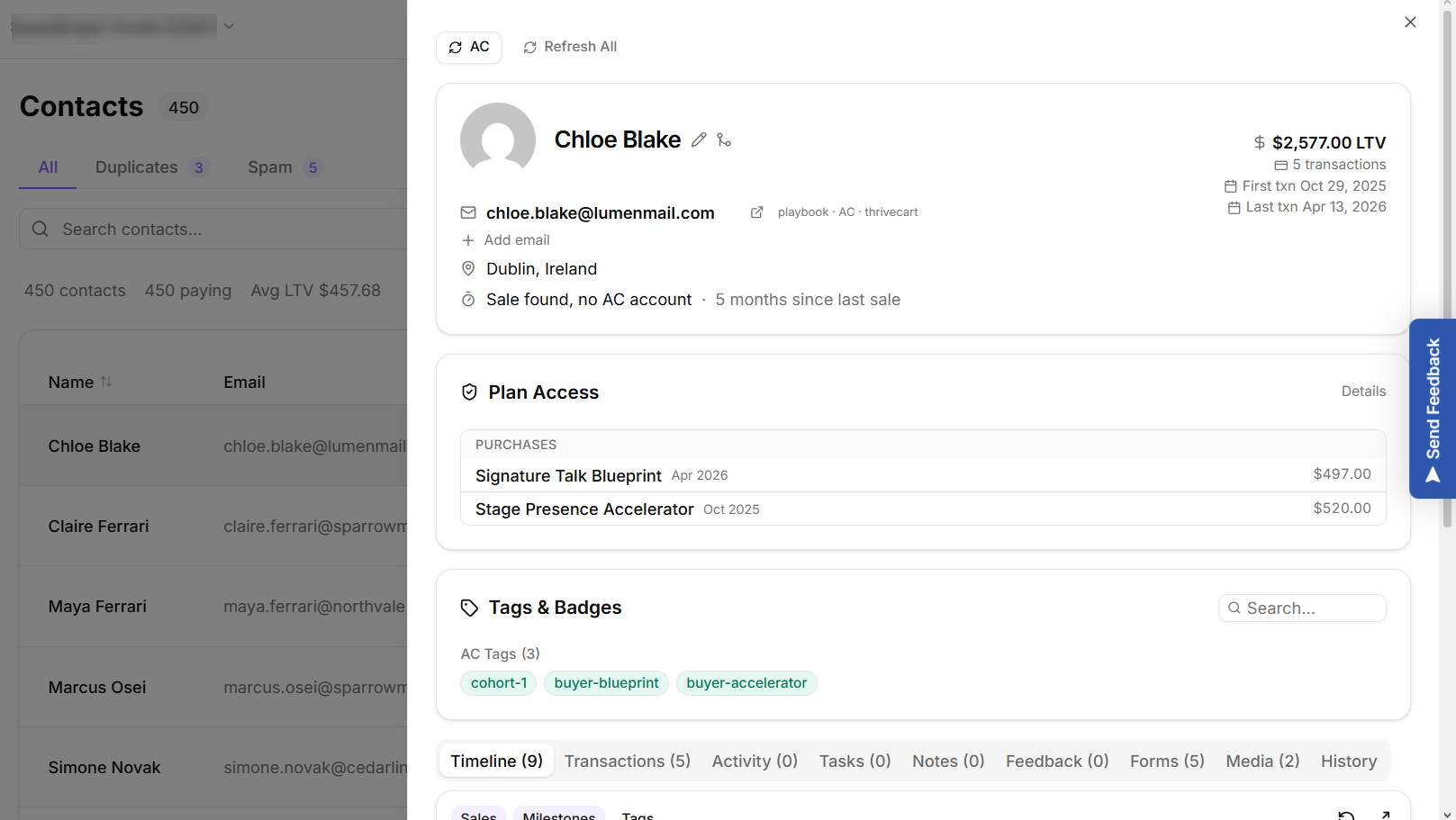
Select a row in the contacts list and the record opens in a panel on the right of the screen. The list stays where it was, so you can work through several contacts in a row. Press Escape to close the panel.
The tabs
A contact record is organized into tabs. Which ones you see depends on the features switched on in your workspace and what data exists for that person, so a tab you read about here can be absent on a particular record. That is normal, and the list below says why for each one.
These tabs are always on the record:
- Timeline: everything KeyMetriq knows about this person in date order.
- Transactions: purchases, refunds, renewals and subscription events.
- Activity: website behavior, if you have tracking installed.
- Tasks: work assigned about this contact.
- Notes: free text your team adds.
- Feedback: feedback this person left.
- History: how this person's name has changed, and who changed it.
These tabs appear only once there is data of that kind for the person, and are hidden until then:
- Media: videos and audio they played. Appears after their first tracked play.
- Forms: their form submissions. Appears after their first submission.
- Conversations: support conversations. Appears once they have at least one.
And this one depends on a workspace feature rather than on data:
- Testimonials: testimonials they gave. Appears when the testimonials feature is switched on for your workspace, whether or not this person has given one.
The Activity tab
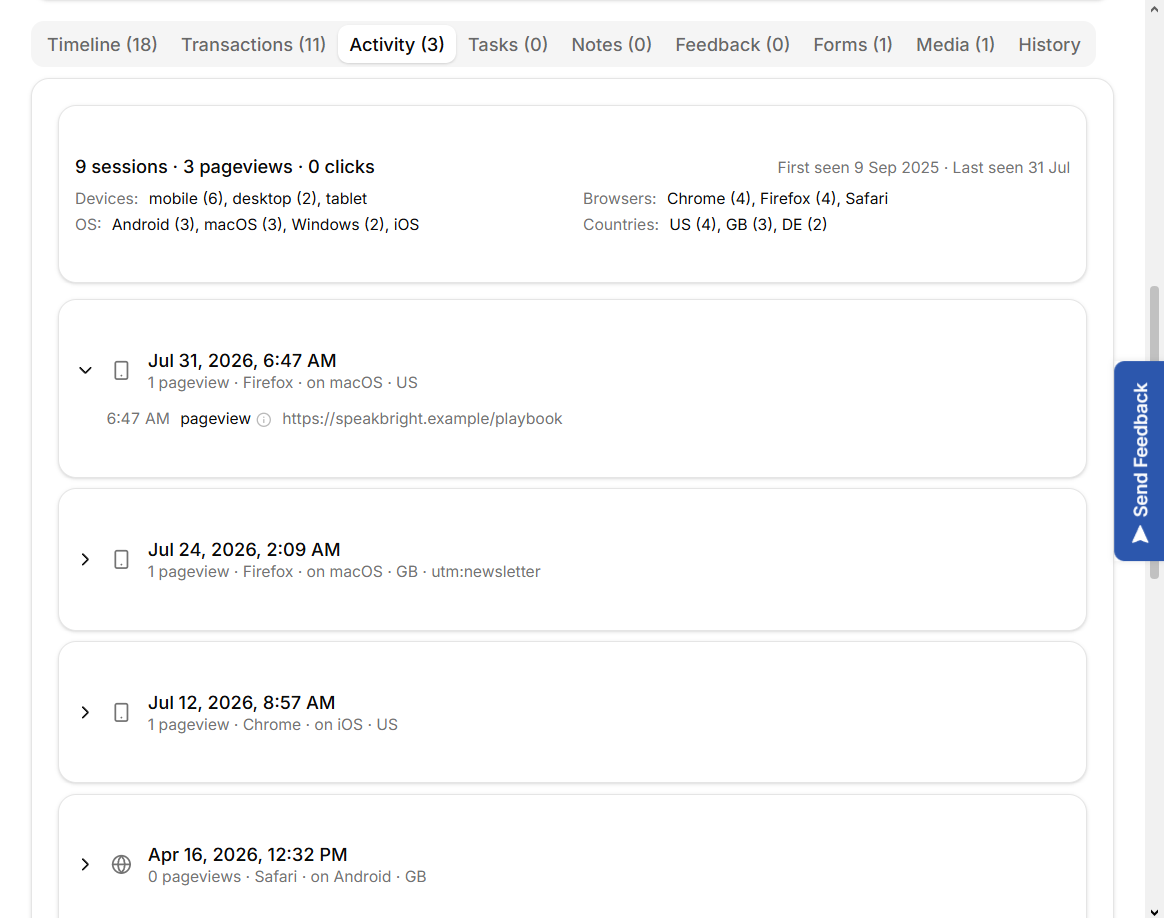
Activity is the website side of the record. The summary line counts sessions, pageviews and clicks, and shows when this person was first and last seen, plus the devices, browsers, operating systems, countries and languages they used.
Individual events are labelled by type, including pageview, identify, click, engagement, outbound link, video play and video ended. Each type has a short explanation next to it in the app, so you do not have to guess what an entry means.
Some entries are marked Scanner. Those are almost certainly a corporate email security system pre-fetching a link rather than a person, so treat them as noise.
The Media tab
Plays appear here once the contact watches a tracked video or listens to a tracked audio track. Each entry shows a completion percentage, the number of plays and when it was last played. A Full watch badge means they watched start to finish in one continuous session at least once; Skipped means they jumped past content they had not watched.
The Forms tab
Every form submission on record for this person, with the form name and the values they entered.
The History tab
Names drift. Somebody types a nickname into a form, a sync overwrites a carefully corrected spelling, an import arrives surname-first. The History tab records every change to a contact's First name and Last name, so you can see what a record used to say.
Each entry shows the field, what it changed from and to, when, and who did it. That last part matters: the actor can be a person on your team, a webhook from a connected platform, an import, an AI action or KeyMetriq itself, and knowing which one changed a name usually tells you whether it was a correction or a mistake.
Select Restore on an entry to put the previous value back. KeyMetriq asks you to confirm, spelling out exactly which field is changing and from what to what. The restore is itself recorded in the history, so nothing is lost by undoing something.
If the tab is empty, no name changes have been recorded for that contact yet. Long histories load a page at a time, with Load more at the bottom.