The list
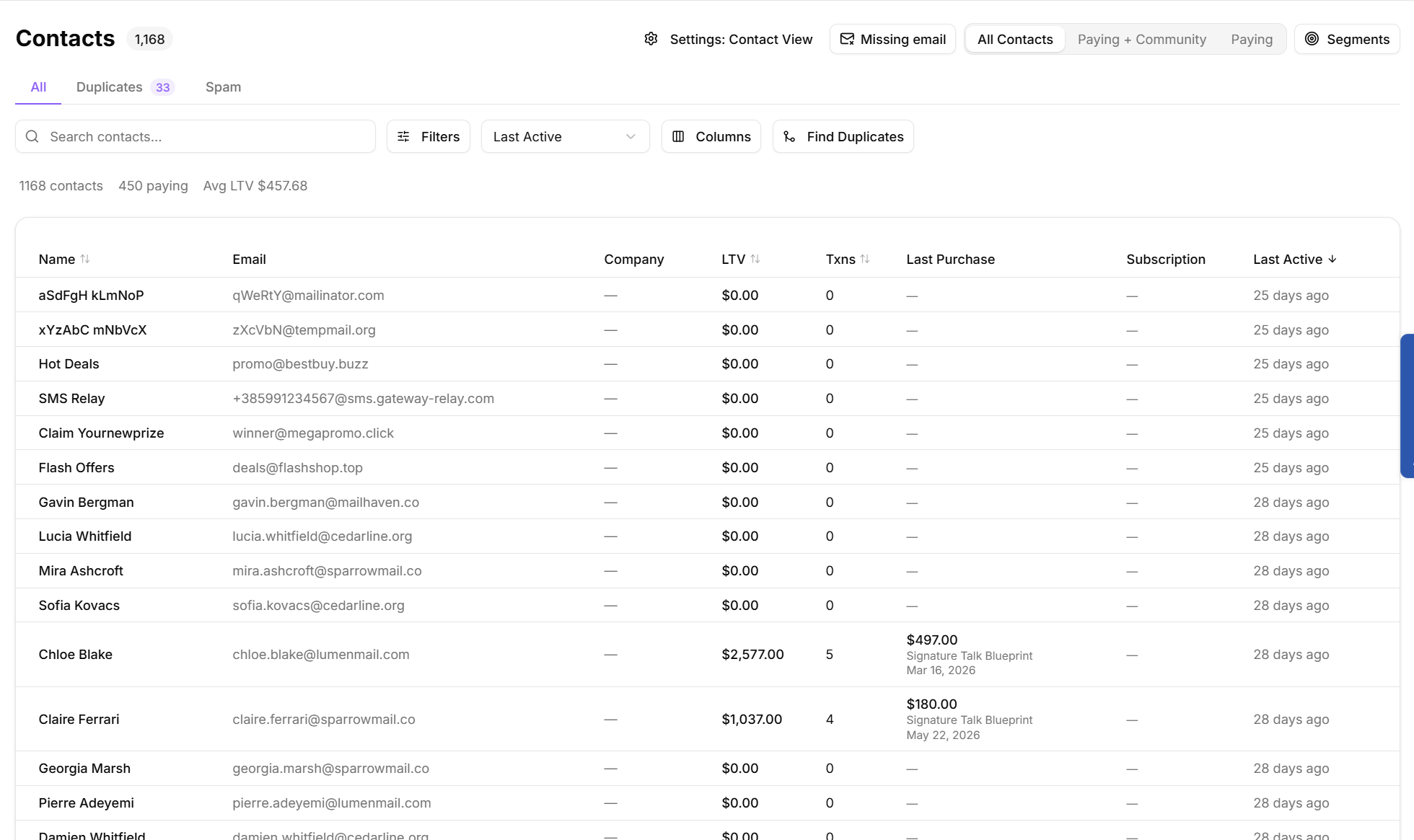
Contacts is the full customer database for your workspace. The header summarizes how many contacts you have, how many of them are paying, and the average lifetime value across the list.
Quick views
Three quick views switch the scope of the list without building a filter:
All Contacts
Paying + Community
Paying
Searching
Type in Search contacts to match across the list. Search is reflected in the page URL, so you can bookmark or share a search result. Pressing Escape clears the search box.
Filtering
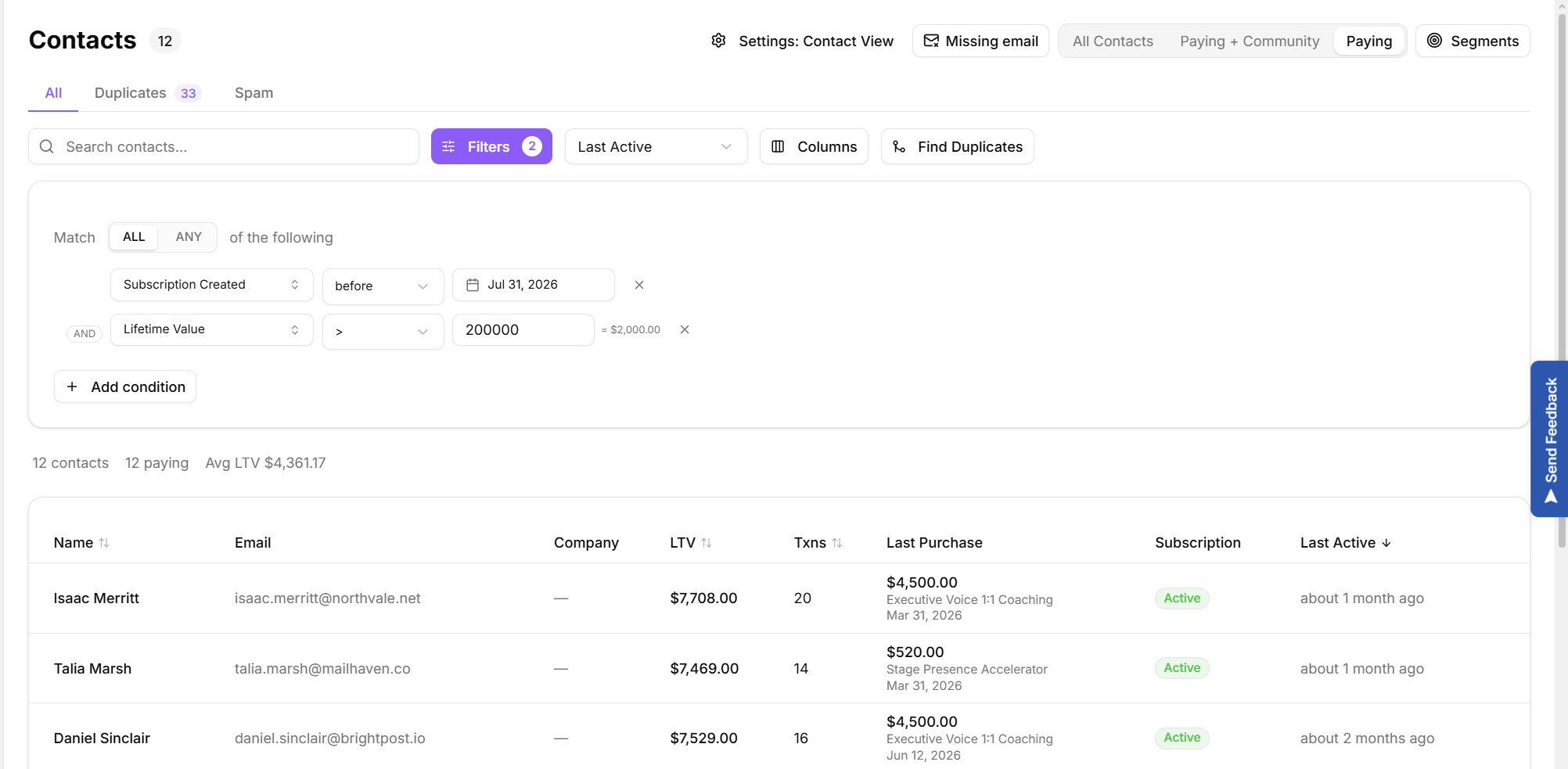
Select Filters to open the condition builder. This is the same builder you use to create a segment, so anything you can express as a segment you can also use here to narrow the list.
You build a filter one condition at a time. Each condition row has three parts:
A field to test, picked from a searchable dropdown.
An operator, such as is, is not, greater than or contains. The operators on offer depend on the field type, so a date field gets date operators and a yes/no field gets is true and is false.
A value.
Select Add condition to add another row. Once you have more than one condition, a Match ALL / ANY of the following toggle appears above them. ALL means every condition must be true, ANY means at least one has to be. The button at the right of each row removes that condition.
Fields are organised into groups in the picker: Revenue, Timing, Email, Subscriptions, Lists & Tags, Messaging, Bookings, Company, Geography, Platform, Products, Engagement, Kit Engagement and Flags. For example, you can filter on Lifetime Value under Revenue, Days Since Last Purchase under Timing, or Has Mobile Number under Messaging.
Some fields only appear when the platform they depend on is connected. The Kit Engagement group, for instance, is hidden until you connect Kit, because those fields have no data to read otherwise. If a saved filter refers to a field whose platform has since been disconnected, the builder flags that row rather than quietly returning nothing.
The list re-runs itself as you edit, so there is no Run button to press here and no separate step to clear the panel. Remove the conditions you no longer want and the list widens again. The Filters button shows a count of how many conditions are currently active.
Sorting
Sorting is the dropdown in the toolbar, immediately to the right of the Filters button. It is not in the Columns picker. It offers Last Active, LTV high to low, LTV low to high, Most Transactions, Name A to Z, Name Z to A, Newest First and Oldest First.
Several of the table's column headers are also clickable. Selecting one sorts by that column, and selecting it again reverses the direction.
Columns
Select Columns to choose what the table shows. Columns are grouped into Core, Revenue, Subscription, Timeline, Email, Support, Platforms, and Tags & Lists, so you can build a revenue view or a support view from the same data. The Order tab lets you drag columns into the order you want, All and None select everything or nothing, and Reset puts the defaults back.
Paging and opening a contact
The footer shows which range of contacts you are looking at out of the total. Select any row to open that contact in a panel on the right without losing your place in the list.