Ask AI
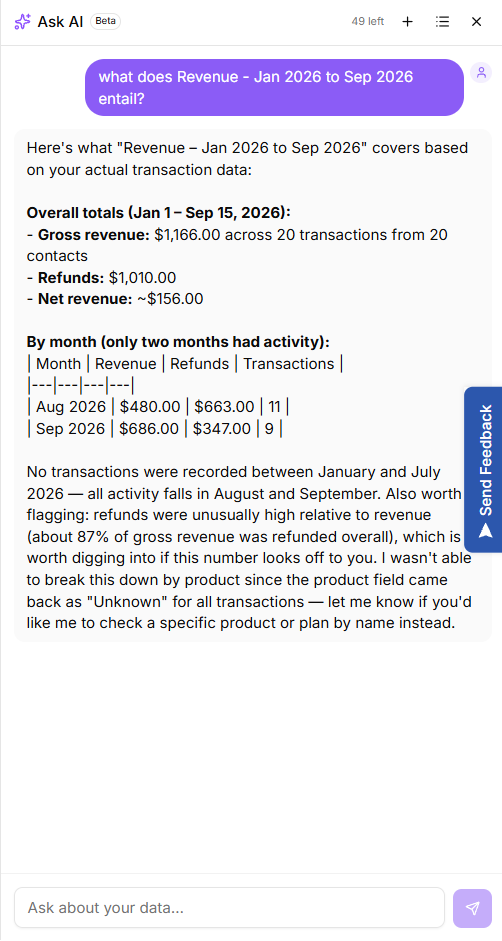
The top bar has an Ask AI button, which opens an assistant in a sidebar alongside whatever page you are on. It knows the page you are looking at, so questions about what is in front of you work well.
Use it for "what does this number mean" and "how do I do X here". It is the fastest route when you are mid-task and do not want to go looking.
Suggest an idea or vote on one
The lightbulb at the bottom of the sidebar, labelled What's New, opens the public roadmap board. There you can see what is planned, vote on features other customers have asked for, and suggest ideas of your own.
Voting is not a formality. It is the clearest signal about what to build next, and it takes a few seconds.
Before you report a problem
Most "it is broken" reports turn out to be one of a handful of things. Checking these first usually gets you an answer immediately, and makes the report much easier to act on when it does not.
- Is the feature switched on? Settings, then Features, controls which areas of KeyMetriq exist for your workspace. A missing sidebar entry is usually this.
- Does your role have access? Tabs and pages are hidden rather than shown greyed out. See "Team members and roles".
- Is the integration connected and healthy? Settings, then Integrations. A platform showing "Connection lost - reconnect required" has stopped syncing entirely.
- Is the tracking snippet installed? For anything about website data, check the tracked domain is not showing Never seen. See "Installing the tracking snippet".
- Has the import finished? Data appears as it arrives. Check the sidebar progress widget and Import History.
Where to send it
The quickest route is the Send feedback button: the middle of the three icons at the bottom of the sidebar, between the lightbulb and the ? icon. Its tooltip reads "Report a bug or tell us what could be better". It opens a feedback form on top of the page you are on, and a screenshot of that page is attached automatically, so the report arrives with the context that a written description usually leaves out.
If the feedback form has not loaded on that page (an ad blocker, or a slow connection), the same button opens a pre-filled email draft to support@keymetriq.com in your mail app instead. In a browser with no mail app configured that draft never appears, so the click can look like nothing happened. If you have seen the button "do nothing", this is almost certainly why: reload the page and try again, or use the email route below.
The second route is a plain email to support@keymetriq.com. There is no ticket form to fill in, so an email with the details below reaches someone who can look at your workspace just as fast.
When you do report it
Include:
- What you did, what you expected and what happened instead.
- The page URL. Filters, tabs and date ranges are in the URL, so pasting it reproduces your exact view.
- The workspace and the role of the account you were using.
- Roughly when it happened, which makes the logs findable.
A screenshot of the whole browser window beats a cropped one: the sidebar and the URL bar carry half the context.