Where team lives
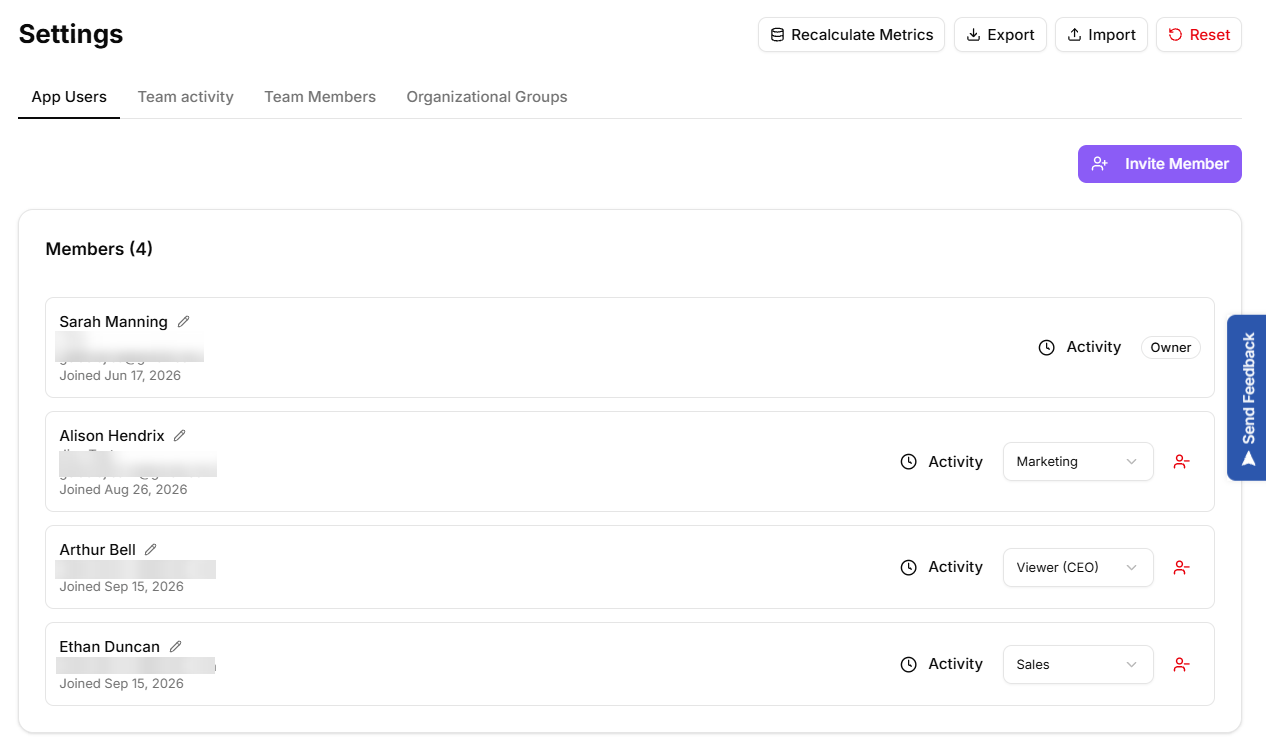
Settings, then the Team tab. It has several sub-tabs, of which two matter most:
- App Users: people who can sign in to KeyMetriq. Each has a role.
- Team Members: your roster of people, which can include people who do not sign in at all.
An app user can be linked to a roster entry, and the list marks them as Linked when they are.
The nine roles
Owner and Admin have full access: everything below, plus integrations, settings, logs and team management. They differ in one place that matters: changing anybody's role is the Owner's alone.
Viewer (CEO) is read-heavy. It sees dashboards, analytics, contacts and their transactions, and the team roster, but cannot manage integrations, settings or the team.
Support is deliberately narrow: contacts, their transactions and the support inbox. It cannot reach campaigns, links, integrations or settings.
Marketing sees dashboards, analytics, contacts, campaigns and links. Notably it does not include transaction detail.
Sales sees dashboards, analytics, contacts and their transactions, but not campaigns or links.
Store Manager covers the web shop and its management, plus contacts, transactions, dashboards and analytics.
Call Moderator is the narrowest role there is. It reaches the coaching hotseat queue and nothing else, which is what makes it the right fit for somebody who moderates live calls but has no reason to see your customer database.
Marketing Moderator is Marketing plus that same hotseat queue. Use it when the person running your campaigns also moderates calls, so you do not have to choose between giving them too little and giving them Admin.
Choosing a role
Pick the narrowest role that lets someone do their job. The difference between Support and Admin is not convenience; it is whether one person's compromised password exposes your integrations and your entire customer database.
Two specific traps:
- Do not use Owner as a general "trusted person" role. Owner can change everyone else's role, including yours.
- Marketing and Sales look similar but differ on transaction access. If your marketer needs revenue figures per customer, Sales is the closer fit.
Changing a role
Only the Owner can change a member's role. An Admin can invite people and remove them, but the role control is not theirs to use: hovering it as an Admin explains that only the tenant owner can change member roles.
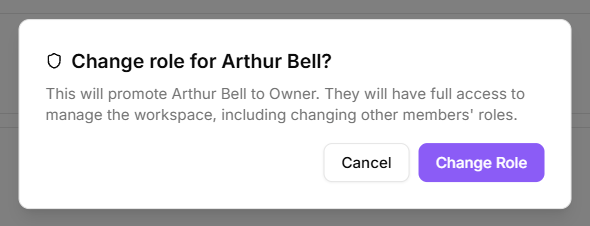
As the Owner, change it from the member's row in App Users. Promoting to Owner asks you to confirm, spelling out that they will be able to manage the workspace and change other members' roles. Demoting from Owner also confirms.
The last remaining Owner is the one exception. Their role cannot be changed at all, so a workspace can never be left without an owner.
Removing someone
Remove takes the person out of your organization. Read the confirmation: if this was their only organization, their account is deleted along with the membership.
If someone has left but you want a record of them, the roster entry can stay while their app access is revoked. Revoking removes their login and cannot be undone; restoring access means inviting them again.
Renaming a member
Each person on App Users can be given a display name for this workspace. As an Owner or Admin, click the pencil next to the member's name, labelled Edit display name, type the name and confirm. When the display name differs from the name on the person's own account, the list shows both: the display name first, the account name beneath it.
Two things it does not do:
- It does not change the person's own account name. They set that themselves at signup and it stays theirs across every workspace they belong to.
- It does not touch the roster. A display name lives on the app user; the entry under Team Members has its own name.
Creating a roster Team Member with the person's email is not the way to rename a login. It adds a second record rather than changing the first; use the pencil instead.
App users versus team members
They are not the same thing and the distinction saves confusion later:
- An app user has a login and a role. Billing and access follow from this.
- A team member is a roster entry, with a job title, employment details and status. A team member does not need a login.
Somebody who never uses KeyMetriq can still exist on the roster. Somebody who uses KeyMetriq every day should be both, linked together.