Where to set it up
Go to Settings and open the Account tab. Two-factor authentication protects your account with an authenticator app. Once it is on, signing in takes a second step.
Your organization may require it, in which case KeyMetriq asks you to set it up before you can continue.
Set up an authenticator app
Select Add authenticator app.
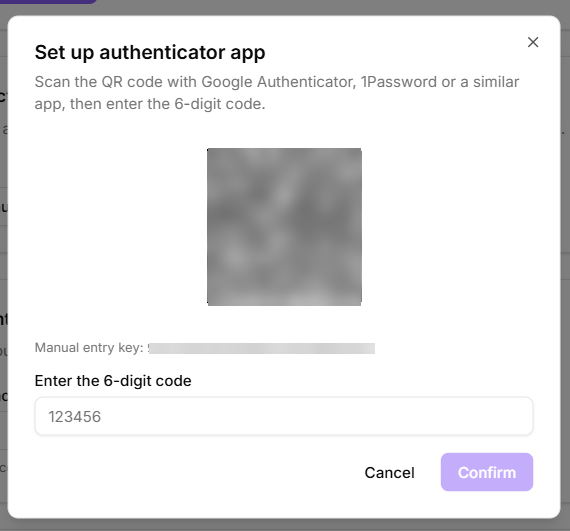
Scan the QR code with Google Authenticator, 1Password or a similar app. If you cannot scan, use the Manual entry key shown next to the code.
Enter the 6-digit code from the app and select Confirm.
KeyMetriq confirms with "Authenticator app added."
Adding an authenticator app
Generate a reset code first
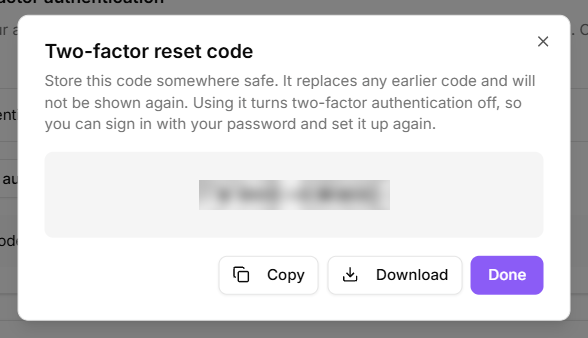
This is the step people skip and regret. A two-factor reset code is what gets you back in if you lose the phone that holds your authenticator app.
Select Generate a code now.
Copy or download it and store it somewhere safe, not on the device that holds your authenticator app.
The code is shown once and never again. Generating a new one replaces any earlier code. Using it turns two-factor authentication off, so you can sign in with your password and set it up again.
If you have no reset code, KeyMetriq warns you on the settings page. Take the warning seriously: without it, losing your device means losing access.
Your two-factor reset code
Signing in afterwards
After your password, KeyMetriq shows a Two-step verification screen. Enter the code from your authenticator app.
Some sensitive changes also ask you to verify again even while you are signed in, with a "This change requires a fresh two-factor verification" prompt. That is deliberate, and it is what stops someone using an unattended logged-in session to change your security settings.
If you lose access
On the verification screen, select Lost access? Use your reset code, enter your reset code and submit. That turns two-factor authentication off for your account so you can sign in normally, then set it up again with your new device.
Too many wrong attempts are rate-limited, so wait a moment rather than retrying immediately.