Full dimension lists
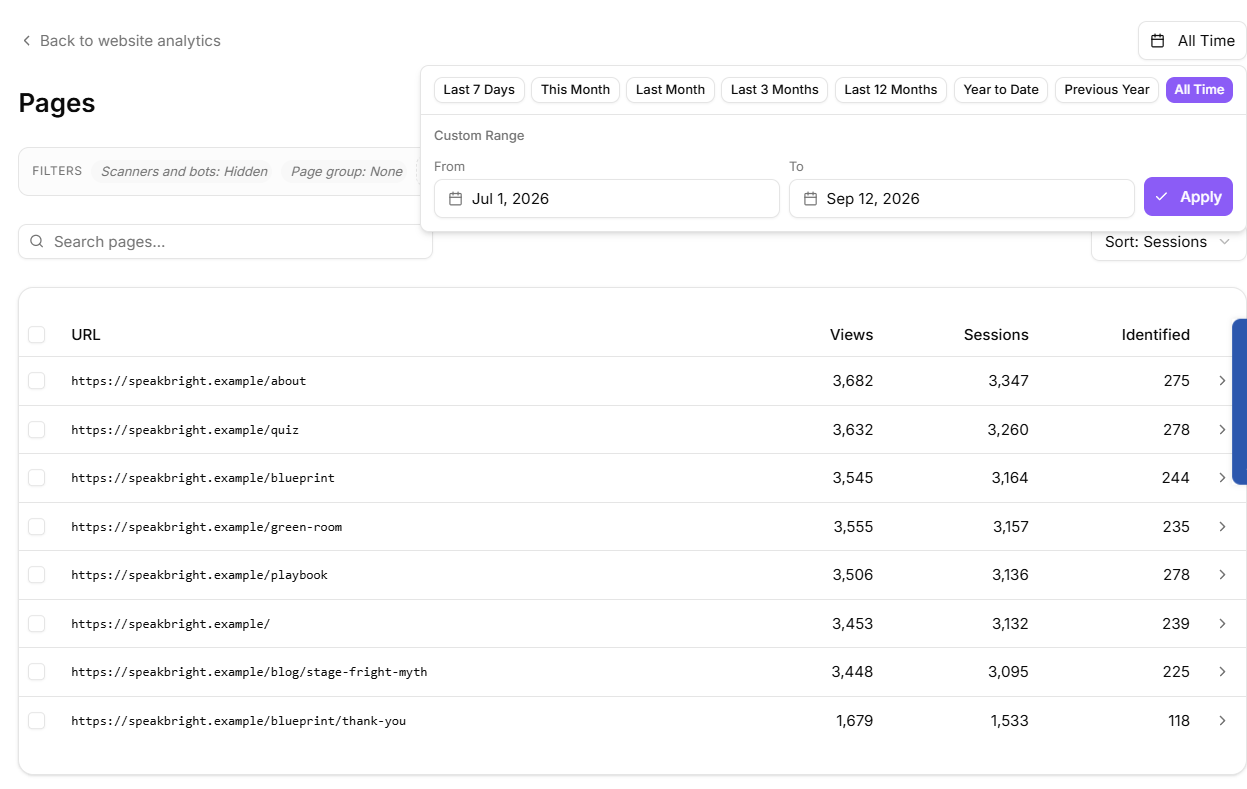
Any panel on the Website tab opens into a full list. The dimensions available are traffic sources, pages, referrers, countries, browsers, devices and operating systems.
Each list keeps its own date range and sort in the URL, so you can bookmark a specific view.
The full pages list
Page detail
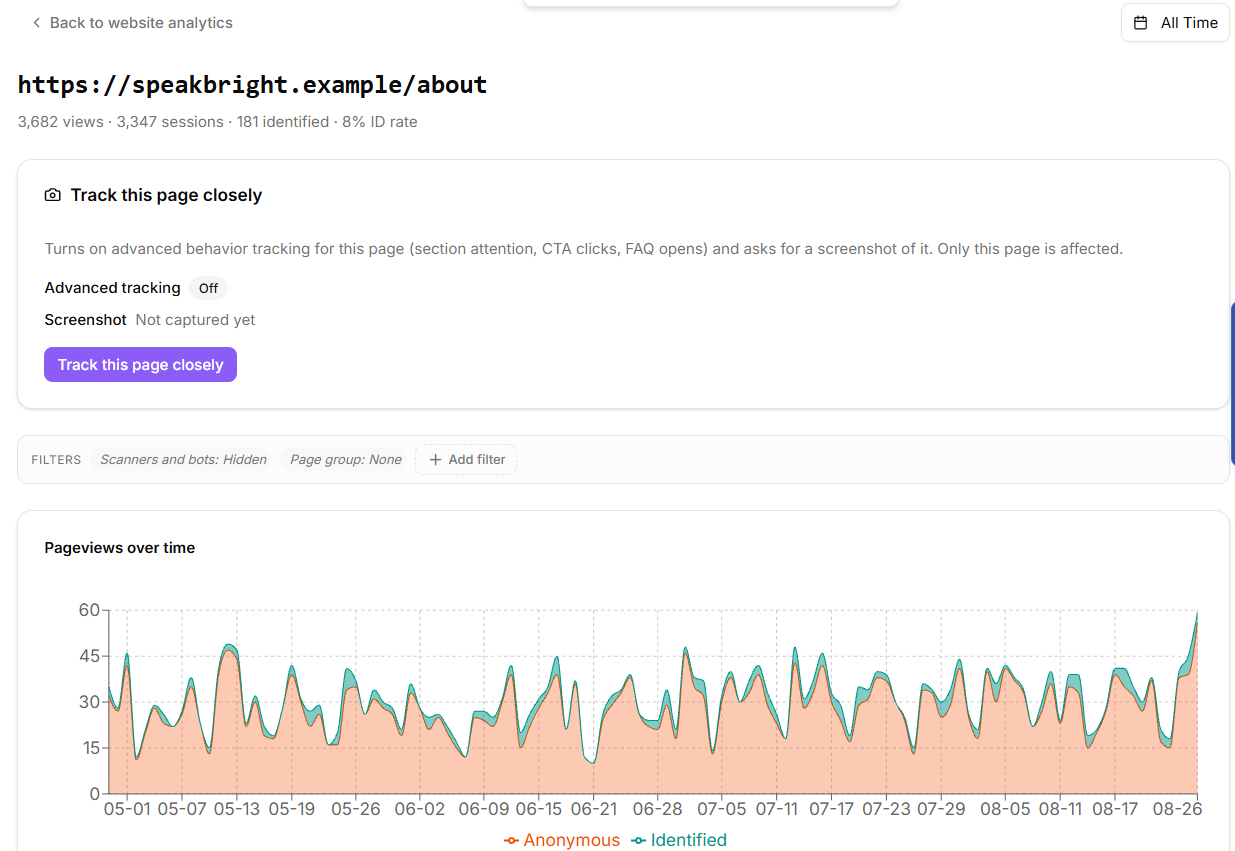
Selecting a page opens its own view: pageviews over time, the referrers, the countries, browsers, devices, operating systems, engagement, FAQ opens, Raw URL variants, and visitors for that single URL, over the date range you chose.
This is where you answer questions the top-level view cannot, such as whether your pricing page skews to mobile while your blog does not.
Detail for a single page
Page groups
Raw page lists get noisy fast: staging URLs, admin pages, thank-you pages that inflate your best-performing list. Page groups let you bucket pages and then include or exclude the bucket from analytics.
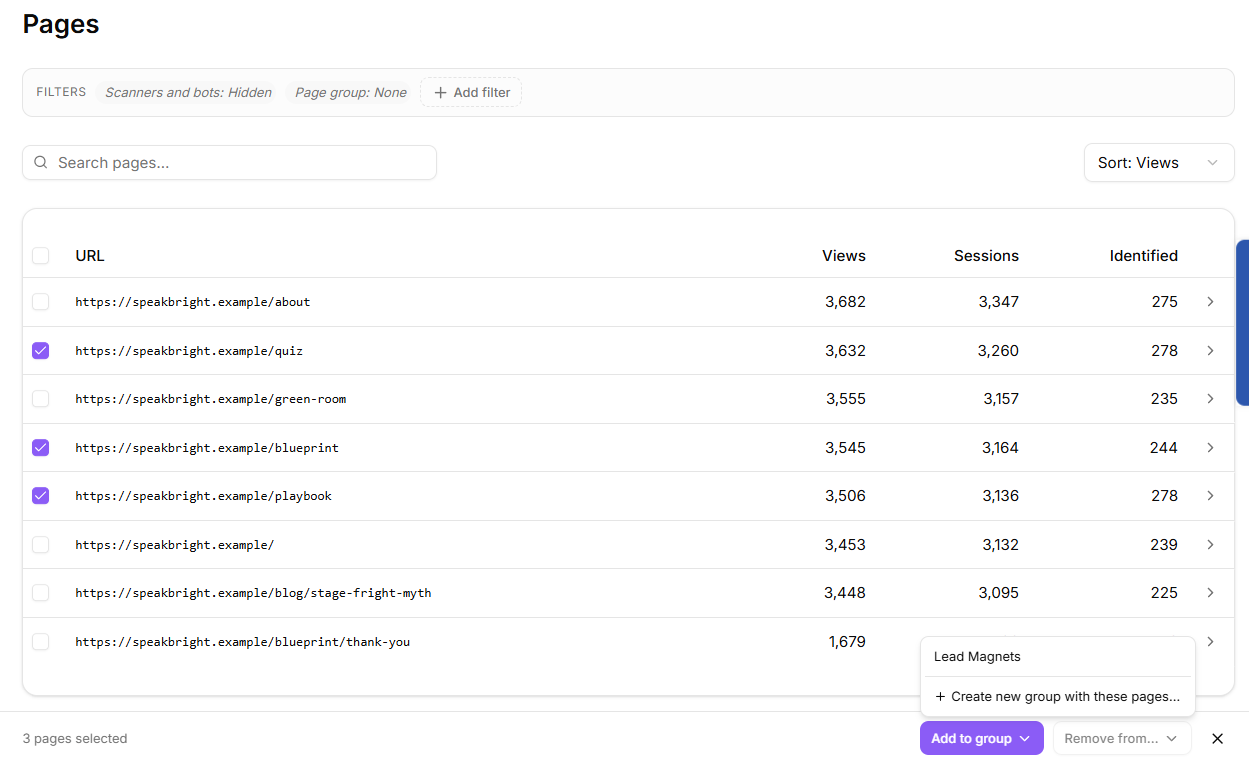
To create one from the list:
Select several pages with their checkboxes.
Choose Add to group, or Create new group with these pages.
Name it, for example Internal, and describe it if the name is not obvious.
Optionally set Default exclude, which silently hides those pages from website analytics until you turn them back on.
You can also add pages by pattern rather than one at a time. A pattern uses * as a wildcard, for example /admin* matches /admin and /admin/users, and the dialog tells you how many tracked pages it matches right now before you commit.
Bucketing pages into a group
Groups are managed in Settings, where you can edit them, remove pages, or delete a group. Deleting a group leaves the pages in tracking; only the grouping goes away.
Filtering by group
On the Website tab, a page group filter offers Exclude, Only show or None, and default-excluded groups can be restored with Restore default-excluded groups when you want to see everything.
Tracked URL parameters
If you put custom codes in your links, such as ?coupon=SUMMER or a site search term, add the parameter under Tracked URL parameters in settings. KeyMetriq then gives that parameter its own tab on the Website analytics view, showing the top values your visitors hit.
Removing a parameter only stops surfacing it. Historical data is untouched and you can add it back later.