Create it
Go to Emails and select New Email.
Choose Broadcast, described as a one-time send on a scheduled date.
Name it and you land in the editor.
Write
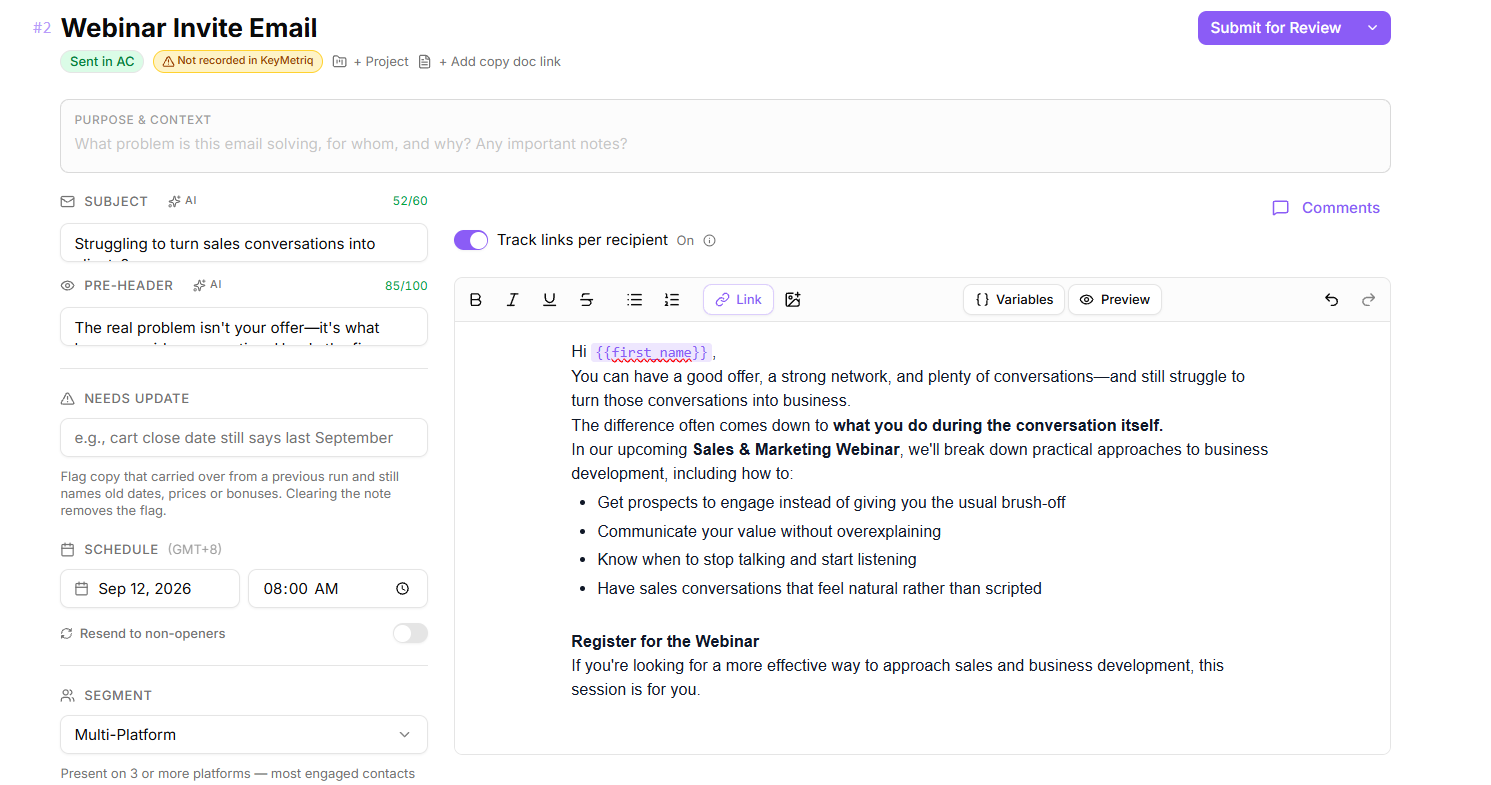
The editor takes formatted text pasted from other editors, so drafting elsewhere and pasting in works. The toolbar covers bold, italic, underline, strikethrough, bullet and numbered lists, images, undo and redo. Selecting text brings up a menu with the same formatting plus Add link and Add comment.
Set the subject line in the subject bar at the top.
Composing a broadcast
Merge variables
Select Variables to insert a personalization field. They are grouped:
Contact: first name, last name, full name, email, phone, organization
Location: city, state or region, zip, country
Account & Links: account name, subscriber id, subscribe date, unsubscribe link, view in browser link
Two habits save embarrassment. Always give a first-name variable a sensible result when the field is empty, and always send yourself a test before the real send. See "Sending a broadcast".
Preview
Preview shows the email with adjustable content width, font size and font family, so you see roughly what a recipient sees rather than the editor's own styling.
Who sends it
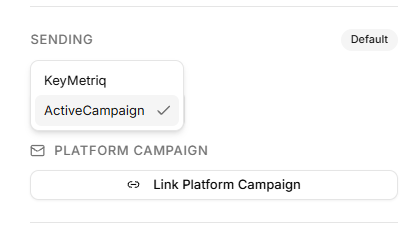
The Sending panel decides whether the email goes out through KeyMetriq or through an External platform. Your workspace has a default, set in Settings, then Email sending, and each email can override it.
The panel tells you which is in force and why, for example that it is using an external platform because one is connected, or KeyMetriq because none is.
Two things to know:
Sending with an external platform requires one to be connected.
Switching an email that is already scheduled in an external platform over to KeyMetriq is risky, and KeyMetriq warns you: it cannot cancel the scheduled send on the other platform, so stop it there first or the email may go out twice.
Choosing who sends the email
Before you send
Run AI Review and check the Deliverability panel. See "Working inside a campaign" in Campaigns & Links for what those cover.