What has to be in place
The Send panel refuses to work until two things are true:
A sender domain is verified. Otherwise it tells you to verify one in Settings, then Email sending.
The campaign is ready. Finish the AI review and mark it ready first.
You also need a postal address saved in your email settings, which is a legal requirement in the footer of marketing email.
Set the sender
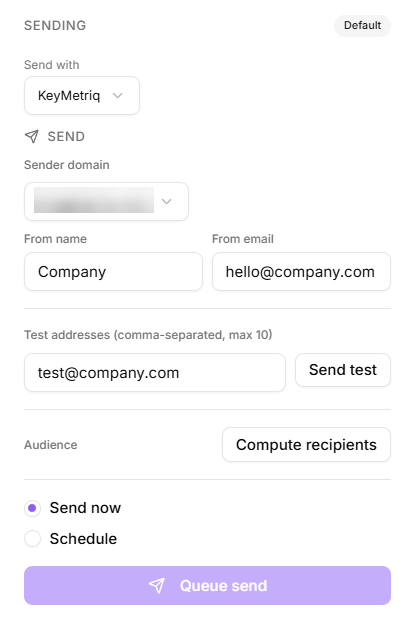
Choose the Sender domain, the From name and the From email.
Send a test first
Enter one or more Test addresses, comma separated, up to 10.
Select Send test.
Check the test on a phone as well as a desktop, and check that merge variables resolved rather than printing as raw tokens.
Sending a test
Compute the audience
Select Compute recipients. KeyMetriq resolves your chosen segment into an actual list and reports two numbers:
how many eligible recipients there are
how many were skipped as unsubscribed, suppressed or without an email address
Read both. A large skipped count is normal on an old list, but a small eligible count usually means the segment is not what you thought.
Send now or schedule
Send now sends immediately.
Schedule sends at a date and time you set.
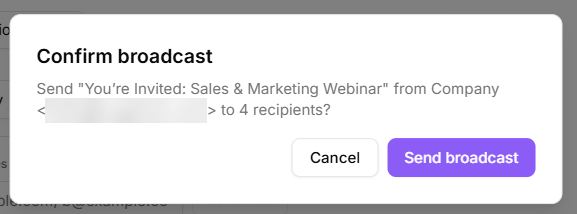
Either way you confirm first: KeyMetriq shows the subject, the from address and the recipient count before it commits.
Confirming a send
While it runs
The send moves through visible states: Queued, Preparing recipients, Sending, then Sent. Progress is reported as a count of how many have gone out of the total. A failure shows as Failed with the error rather than silently stopping.
Cancelling
A scheduled send can be cancelled with Cancel scheduled send, and shows as Canceled. Once a send has started, it cannot be recalled: the emails that have gone out are gone. That is the reason for the test send and the confirmation dialog.