Do this before anything else
KeyMetriq cannot send email from your address until you prove you own the domain. Until a domain is verified, the send screen tells you to verify one first, and form auto-replies will not send either.
Go to Settings and open Email sending.
Root domain or subdomain
You can verify either, and the choice has real consequences:
Root domain, for example yourdomain.com. You send from a recognizable address such as info@yourdomain.com, and replies land in your normal inbox. The downside is that broadcasts share sending reputation with all your other email.
Subdomain, for example news.yourdomain.com. Broadcast reputation stays separate from your regular email, which is the safer choice for cold or high-volume sending. You send from an address on the subdomain.
If you are not sure, use a subdomain. A bad campaign then cannot damage delivery of your invoices and replies.
Add the domain
Select Add domain.
Enter the domain, for example mail.yourdomain.com.
Save.
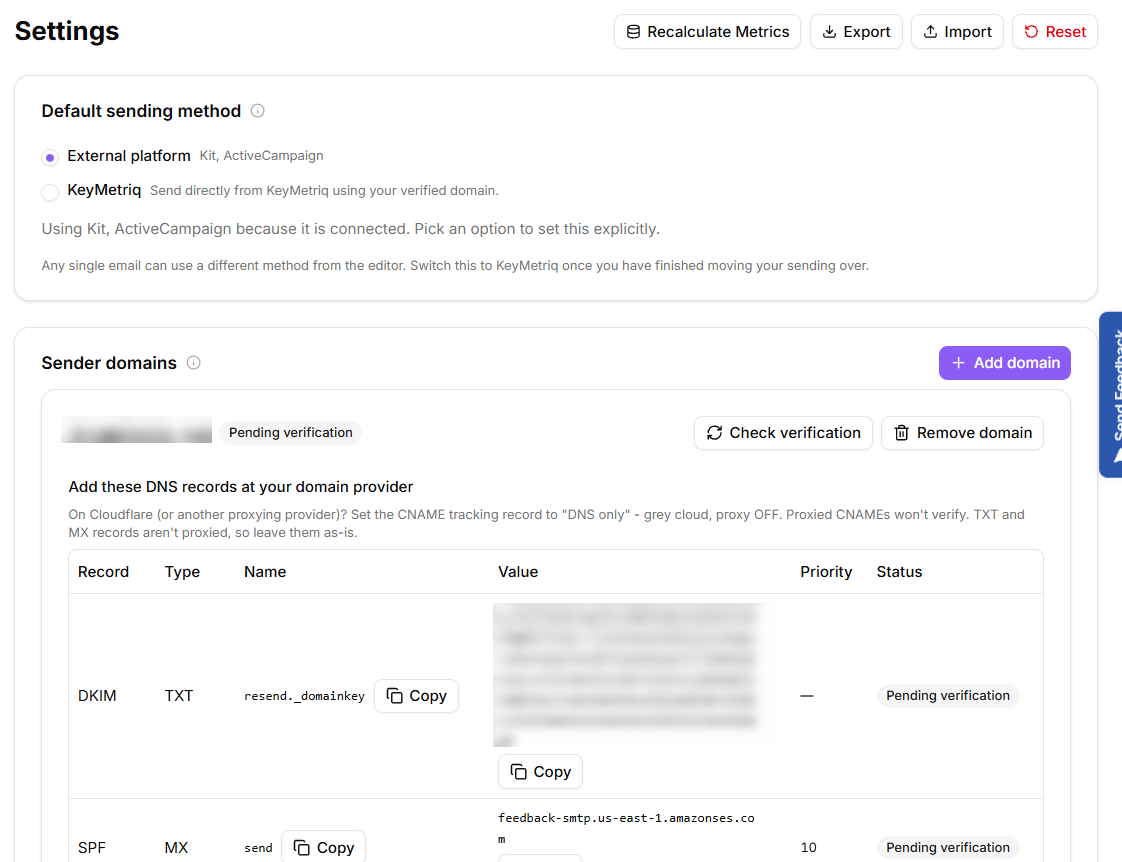
The domain appears with a Pending verification badge and a table of DNS records to publish.
A pending sender domain and its DNS records
Publish the DNS records
The table gives you each record's Type, Name, Value and, where relevant, Priority, with a Copy button on each. Add t hem at your domain provider exactly as shown.
One trap is worth stating plainly. If your DNS is on Cloudflare or another proxying provider, set the CNAME tracking record to DNS only, meaning the grey cloud with the proxy off. A proxied CNAME will never verify. TXT and MX records are not proxied, so leave those as they are.
Check verification
Publish every DNS record before you select Check verification. Checking early is not fatal, but it wastes a round trip and can push the domain into a failed state you then have to check your way out of.
DNS changes take time to propagate, from minutes to a few hours.
Once your records are published, select Check verification. While a domain is pending, each record shows its own status, so you can see which one is still outstanding rather than guessing, and the check re-reads that status whenever you select it.
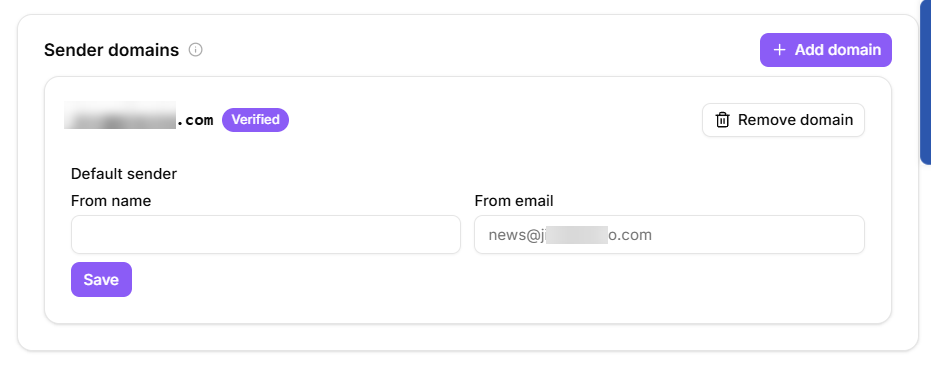
When everything passes, the badge changes to Verified.
If the domain shows Failed, publish or correct the DNS records shown, then select Check verification again. A failed domain is re-checked properly, not just re-read, so a genuine fix at your DNS provider will clear it. Give it a few minutes between attempts: checks are limited to one every five minutes, and DNS needs that long anyway.
If it still fails after your records are confirmed live at your provider, remove the domain and add it again. That issues a fresh set of DNS records, which you then publish in place of the old ones. Still stuck, or the domain stays pending for hours? Contact support at support@keymetriq.com.
A verified sender domain
Set your defaults
Once verified, set the Default sender: a From name and a From email on the verified domain.
Also fill in Postal address (shown in email footer). Anti-spam laws require a valid postal address in every marketing email, and KeyMetriq blocks a send without one.
Removing a domain
Remove domain asks for confirmation, because campaigns can no longer be sent from it afterwards. A domain with a send in progress cannot be removed until that send finishes.