When to use it
Use this when you want to bring in a full ActiveCampaign export in one pass, including tags, engagement data and custom fields. It complements the live ActiveCampaign integration rather than replacing it.
Step 1: choose the file
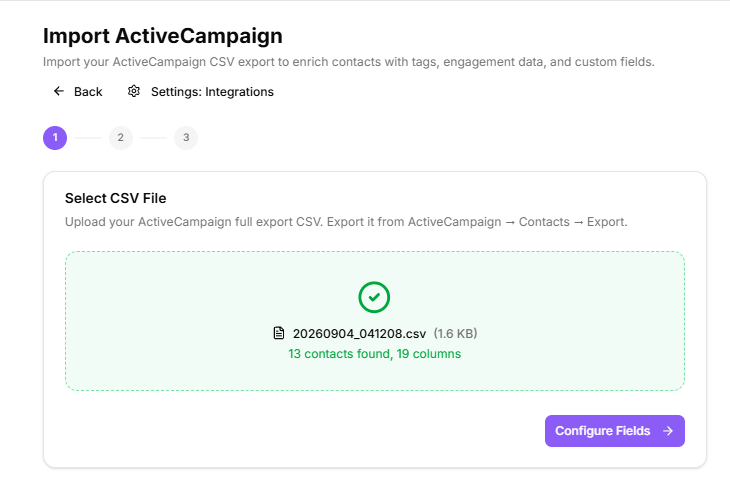
Export your contacts from ActiveCampaign as a full export, then drop the CSV on the import page or click to browse. The wizard validates the headers as soon as the file lands and shows Valid CSV when it is happy. Only .csv files from an ActiveCampaign full export are accepted.
Selecting an ActiveCampaign export
Step 2: pick fields and preview
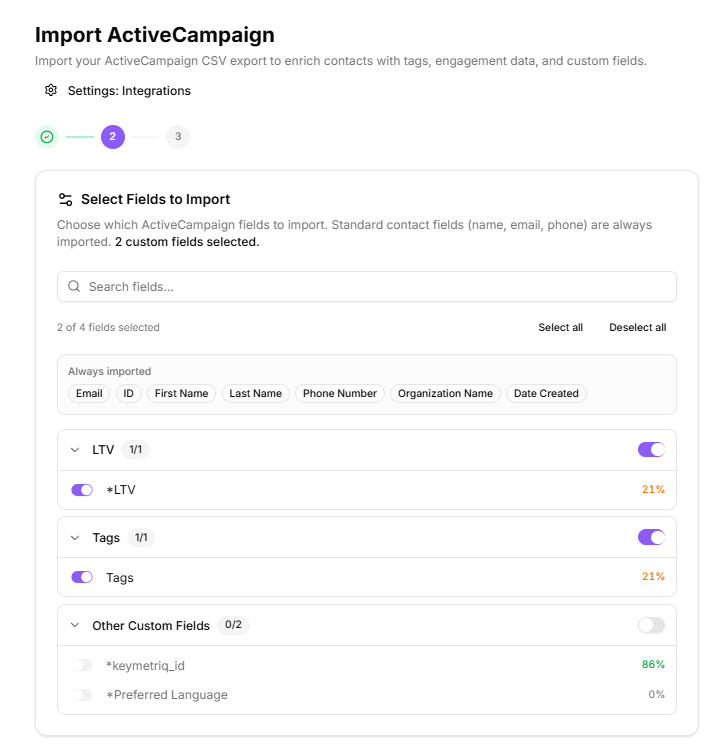
The wizard reads the columns in your file and groups them into categories so you can choose what to bring across rather than importing everything. You get a preview of the tags it found before committing.
The important control here is the create-contacts toggle:
On: new contacts are created for people who exist only in ActiveCampaign, such as leads who never purchased.
Off: only existing contacts are enriched. Anyone in the export without a matching email address in KeyMetriq is skipped.
Off is the safer default if you are importing a large list and only want to enrich the customers you already know about.
Choosing which fields to import
Step 3: import and summary
The import runs with a progress bar and an elapsed timer. When it finishes you get a breakdown:
Matched & enriched
New contacts
Skipped (no match)
Tags added
Properties saved
Emails linked
Emails linked is worth a look. Those are additional email addresses added to existing contacts, which is exactly what makes future matching better.
Afterwards
Run a duplicate scan. Importing a large list is the most common way near-duplicate records appear.