Which files you need
The SamCart wizard takes up to four export files:
Charges (required)
Orders
Failed Charges
Refunds
Only the charges file is required. The others add context: orders tell KeyMetriq what was bought, failed charges and refunds complete the payment picture so revenue is not overstated.
Export all four if you can. It is much easier than coming back later.
Step 1: choose the files
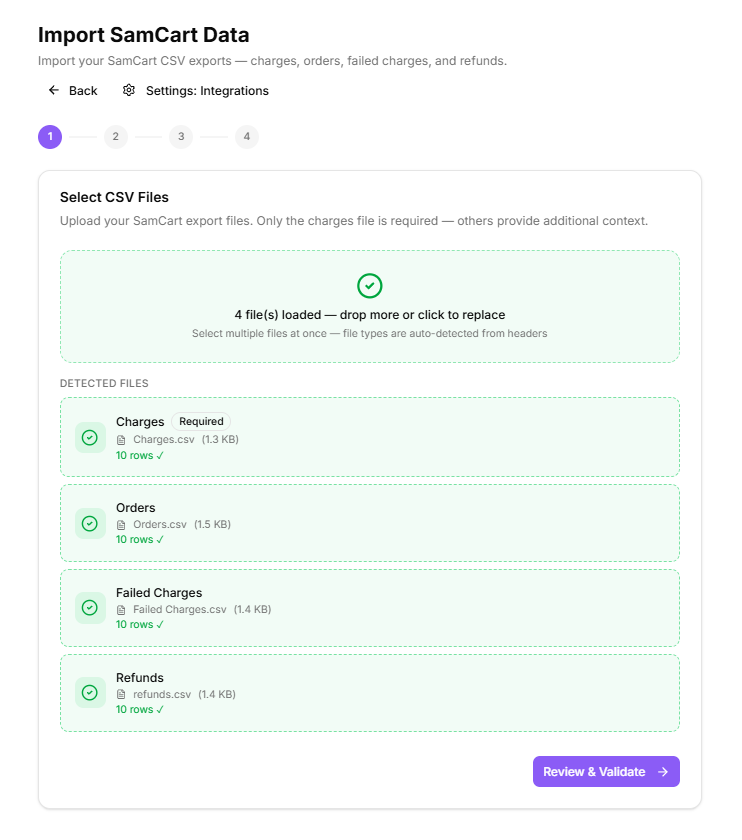
Drop all your CSV files on the page at once. The wizard detects what each file is by its headers, so you do not label them yourself. As files land it reports how many are loaded, and you can drop more or replace them.
Dropping SamCart export files
Step 2: validation and preview
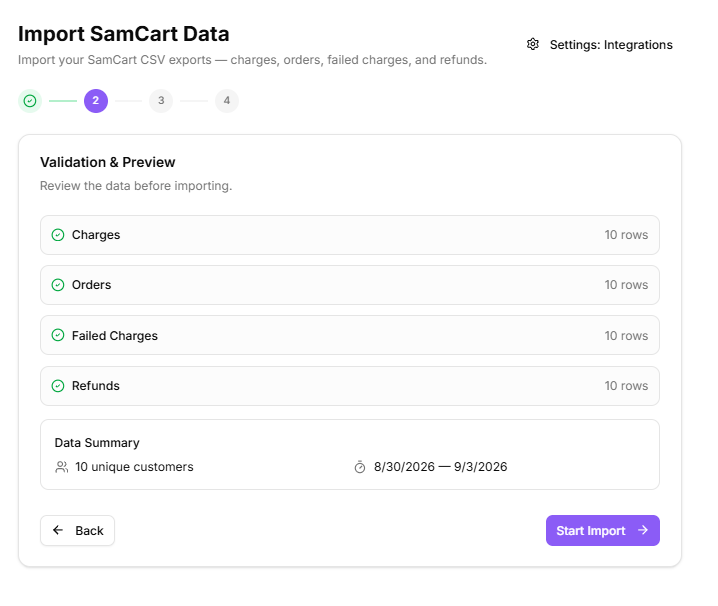
Each detected file is validated and shown with its type: Charges, Orders, Failed Charges, Refunds. You cannot continue until a valid charges file is present, since everything else attaches to it.
If a file is not recognized, the likely cause is that it was edited after export, opened and re-saved by a spreadsheet program, or is a partial export with columns removed.
Validating the SamCart files
Step 3: import
The import runs with a progress bar. Large exports take a while; the page keeps working and you can watch progress.
Step 4: summary
The final step reports what was imported so you can confirm the run before moving on.
Afterwards
Open the Unmapped tab on the integrations page. Transactions that could not be matched to a known product land there and can be mapped by hand, which is what makes product-level revenue correct.
Run a duplicate scan on the Duplicates page.