Get the export
In your Mighty Networks admin, go to Members and choose Export. That gives you an XLSX file.
Note the format. This wizard takes XLSX, not CSV, so do not convert the file before uploading it.
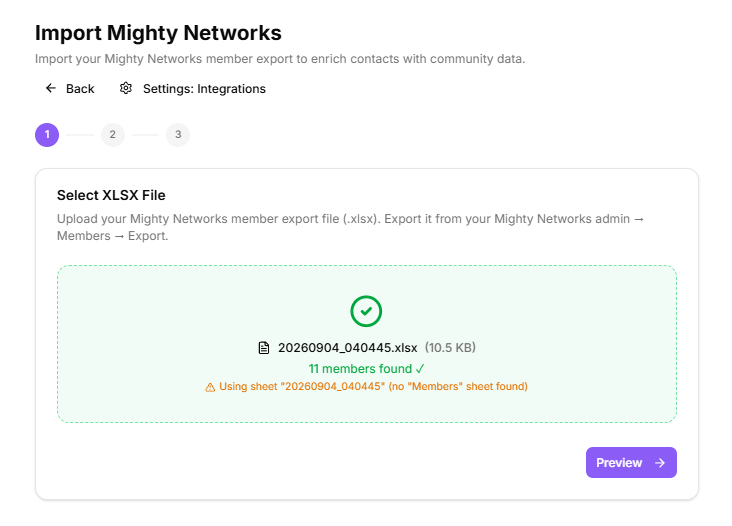
Step 1: choose the file
Drop the XLSX on the import page or click to browse.
Selecting a Mighty Networks export
Step 2: preview and options
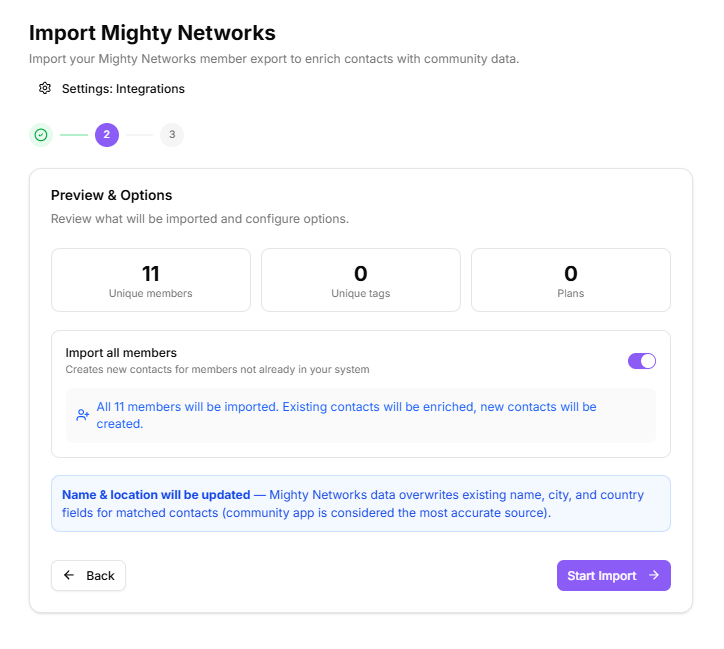
Before anything is written you see what the file contains: how many members match contacts you already have, the tags it found and how many are unique, and the plans your members are on.
The Import all members toggle decides scope:
On: every member in the file is imported, creating contacts for those KeyMetriq has never seen.
Off: only members matching existing contacts are enriched. Unmatched members are skipped.
Preview and options
Step 3: import and summary
A progress bar and elapsed timer run while the import works. The summary reports:
Members matched
Members created
Tags added
Import versus integration
You can also connect Mighty Networks as a live integration, which keeps members in sync on a schedule and through a webhook. The two work together: use the integration for ongoing sync, and this wizard when you want to load a full history in one go or backfill something the integration missed.
Afterwards
Community members often join with a different email address from the one they buy with. Run a duplicate scan after the import and work through the queue.