Sign up
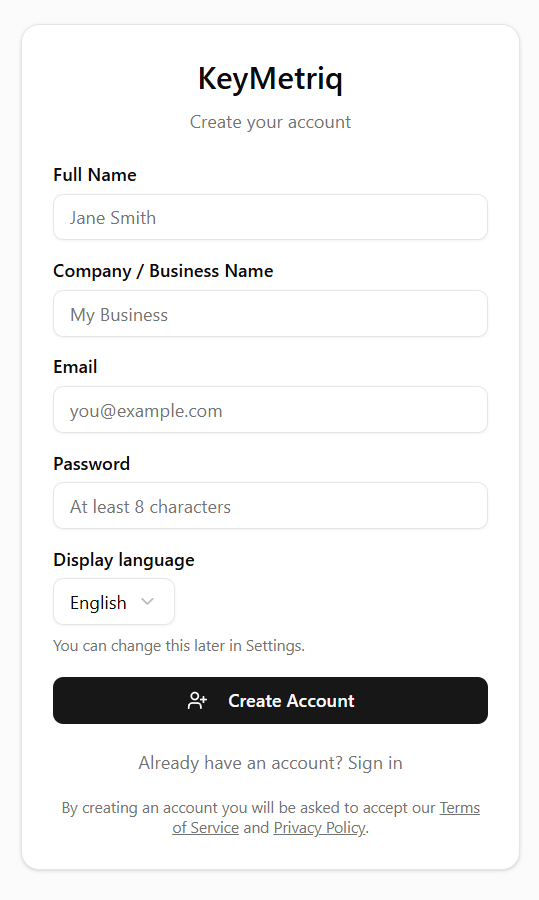
Go to the signup page and fill in the form:
Full Name, for example Amy Parker.
Company / Business Name, which becomes the name of your workspace.
Email and a Password of at least 8 characters.
Display language. You can change this later in Settings.
Select Create Account.
The signup form
Approval
New accounts are not active immediately. After you sign up you see an Account Created screen telling you the account is pending approval, and you get an email once it is activated.
If you try to sign in before that, KeyMetriq shows a Pending Approval notice instead of the dashboard. Nothing is lost. Leave the signup success screen open and the app signs you in on its own as soon as your account is activated, or come back and sign in later.
Sign in
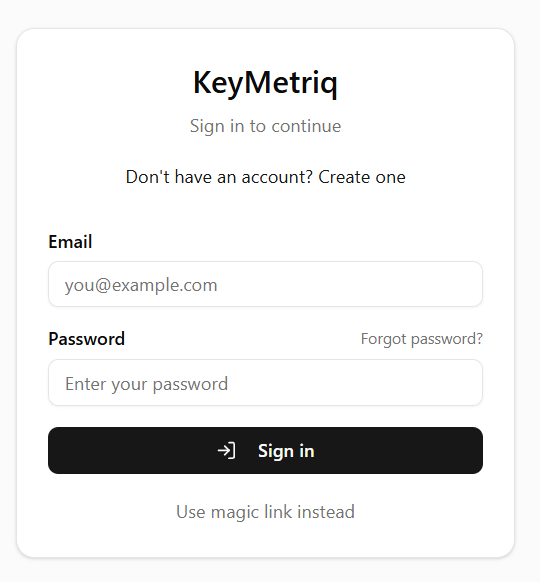
Go to the login page.
Enter your Email and Password, then select Sign in.
The sign-in page
If you would rather not type a password, select Use magic link instead, enter your email address and select Send magic link. KeyMetriq emails you a sign-in link and shows a Check your email confirmation. Select Use password instead to switch back.
Forgotten password
On the sign-in page, select Forgot password?.
Enter your email address and select Send reset link.
Open the link in the email, choose a new password of at least 8 characters, confirm it, and select Set password.
Reset links expire. If yours has, the page says the link is invalid or expired, and you can request a new one from the sign-in page.
Joining an existing workspace
If a colleague invited you, do not sign up from scratch. Use the link in the invitation email instead, which asks you to set a password and joins you to their workspace directly. See "Inviting your team" in this category.