Opening the wizard
The first time you sign in to a workspace with no connected platforms, KeyMetriq takes you straight to the setup wizard. You can also reach it from the Complete Setup link at the bottom of the sidebar, which carries a dot until setup is finished. Only members who can manage integrations see it.
Every step has a Skip setup link in the header, and nothing you do here is permanent. You can change all of it later in Settings.
Step 1: Workspace
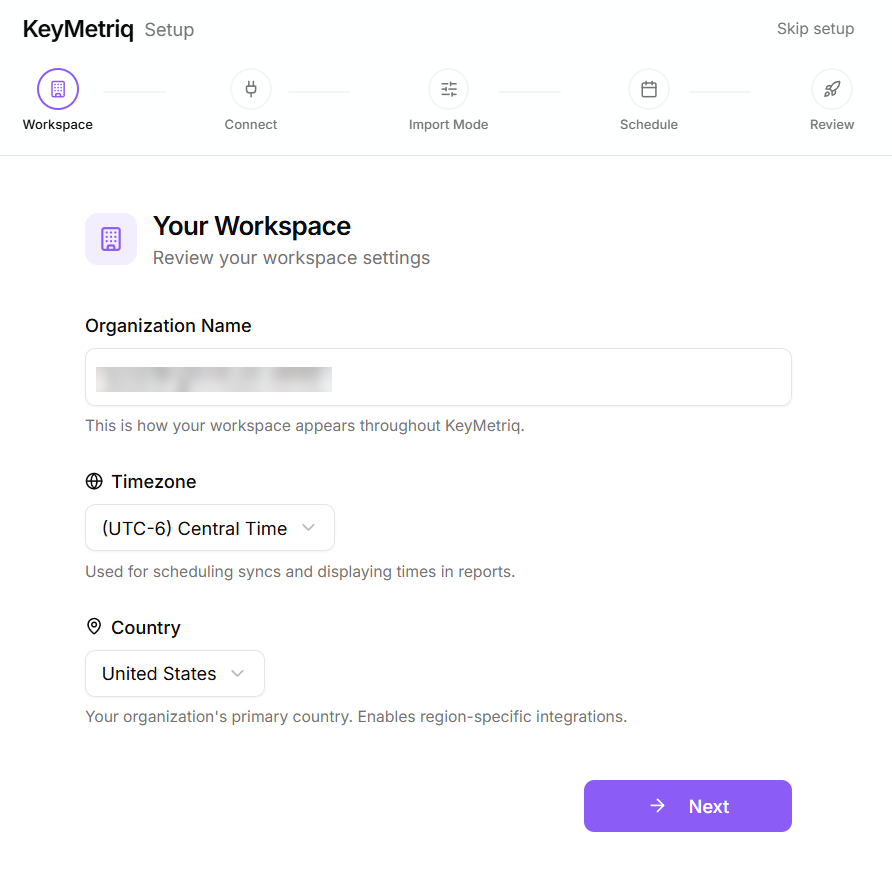
Set the Organization Name that appears throughout KeyMetriq, your Timezone (used for scheduling syncs and displaying times in reports) and your Country, which enables region-specific integrations.
Step 2: Connect
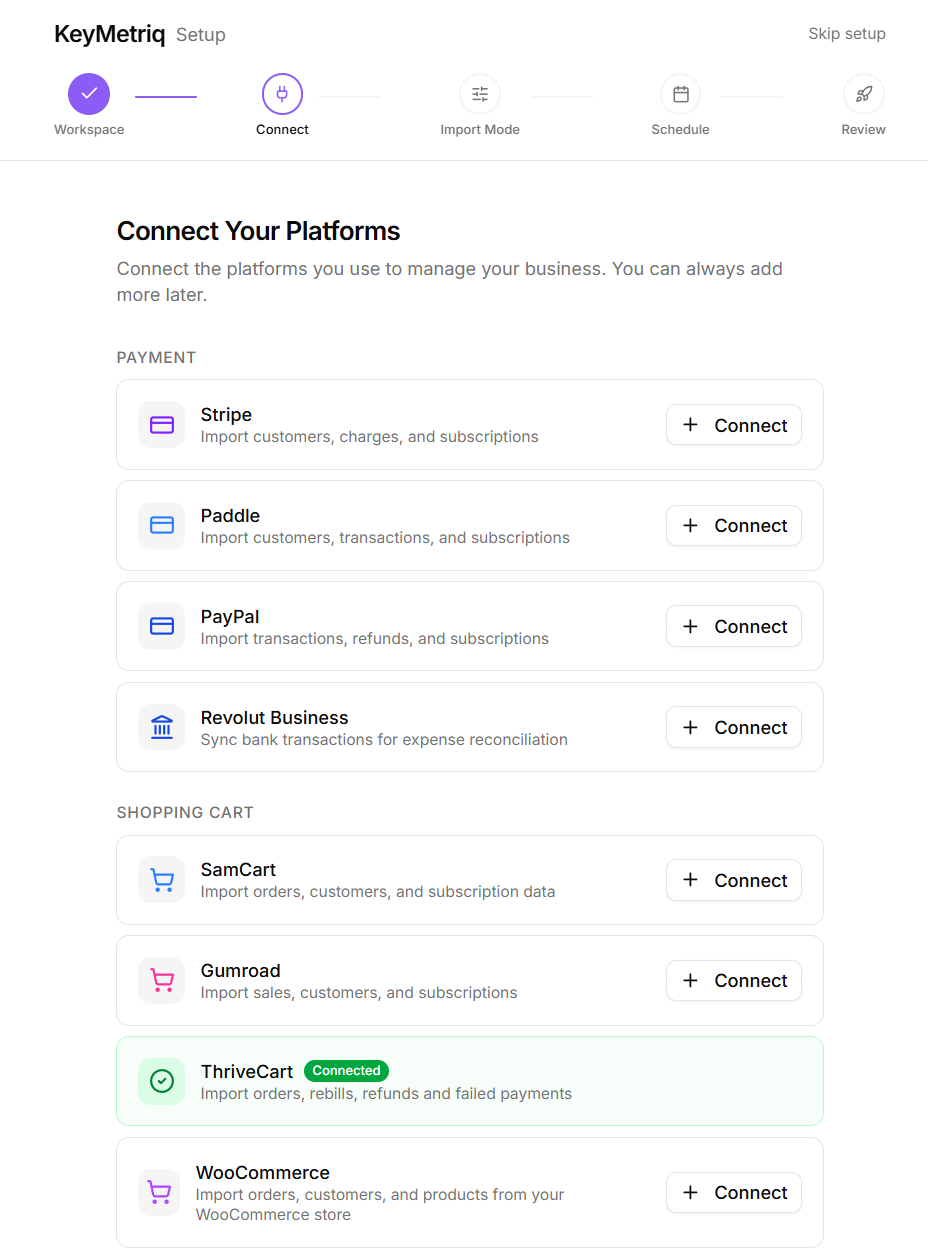
Pick the platforms you use and connect them. Each one opens a dialog asking for that platform's API credentials. Connected platforms get a Connected badge, and platforms that support several accounts show an Add account button.
You need at least one connected platform to continue.
Step 3: Import Mode
Import mode decides which platforms are allowed to create new contacts and which only enrich contacts you already have. Choose one of:
- Paying customers only: only payment and cart platforms create contacts.
- Paying + community members: payment, cart and community platforms create contacts; CRM and support platforms match existing ones.
- Everyone from all platforms: every connected platform creates contacts.
Each platform in the list shows an import all or match only badge so you can see the effect of your choice.
Step 4: Schedule
Turn on Enable automatic sync and choose a frequency (daily, weekly or monthly), a day and a time. The Timezone listed underneath is the one you set in step 1, shown here for reference; there is nothing to pick. Change it in your workspace settings if it is wrong. Scheduled syncs keep your dashboard current. You can enable them later in Settings instead.
Step 5: Review and start
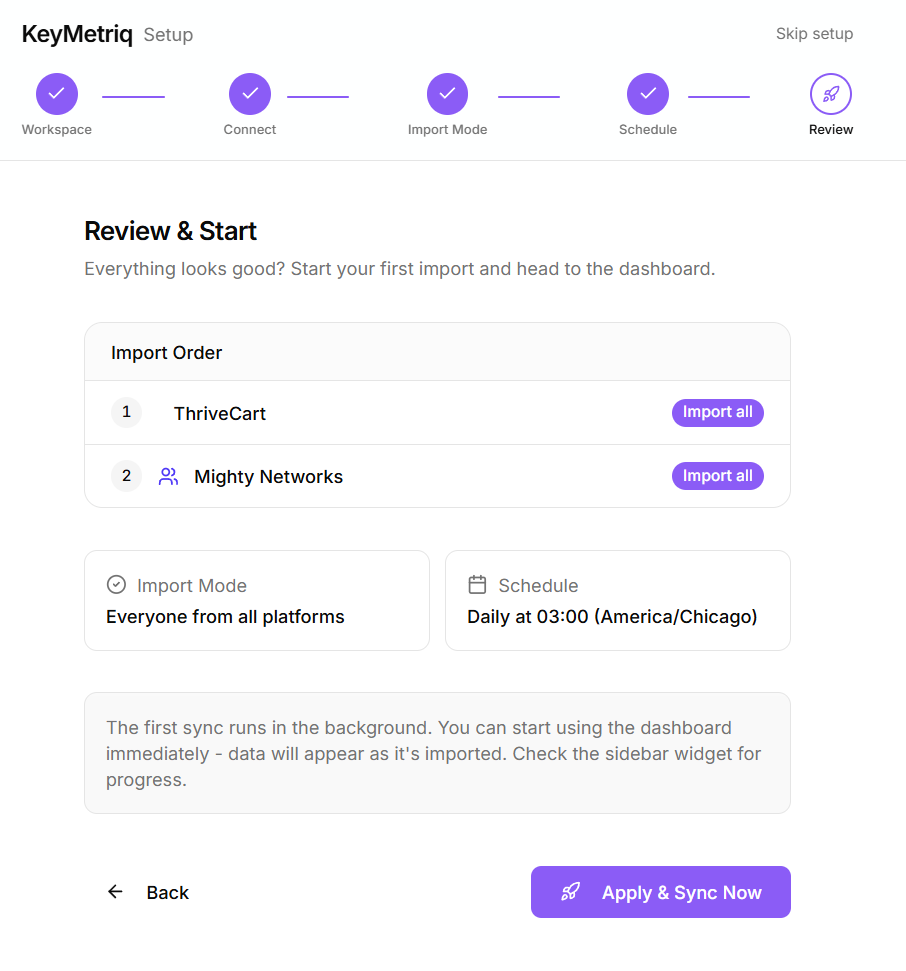
The last step summarizes your import order, import mode and schedule, and offers webhook setup for the platforms that support it. The Real-time Webhooks section starts collapsed, so select its header to open it. Webhooks push changes to KeyMetriq instantly; without them, data only updates on scheduled syncs. Each platform shows either an Automatic badge or the exact steps to paste the webhook URL into that platform.
Select Start Import & Go to Dashboard. If you re-run setup after your data has already been imported, the same button reads Apply & Sync Now.