Where they are
The bell in the top bar opens Notifications. The header shows how many are unread. KeyMetriq raises notifications for things that need a person to look: sync problems, comments, and other events across the app.
The notification list
Reading and filtering
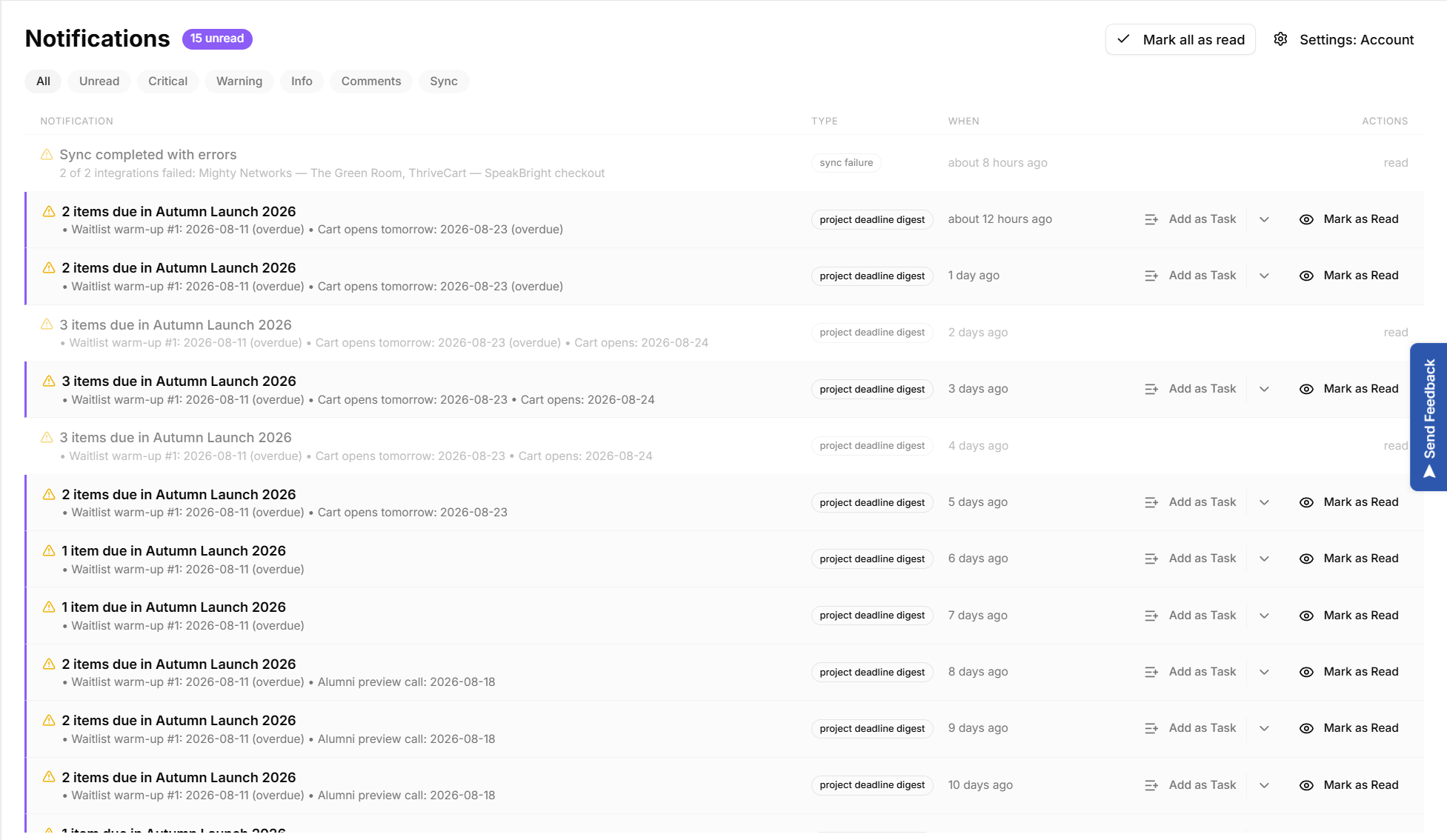
The list shows each notification, its type, when it arrived and the actions available on it. Filter with the buttons above the list:
All and Unread
Critical, Warning and Info by severity
Comments and Sync by source
Select Mark as Read on a single row, or Mark all as read to clear the unread count in one go. Read entries stay in the list with a read label, so nothing disappears.
When there is nothing to show, the page says so, and tells you whether the list is genuinely empty or just filtered down to nothing.
Turning a notification into work
A notification you cannot deal with immediately should become a task rather than an unread badge you learn to ignore.
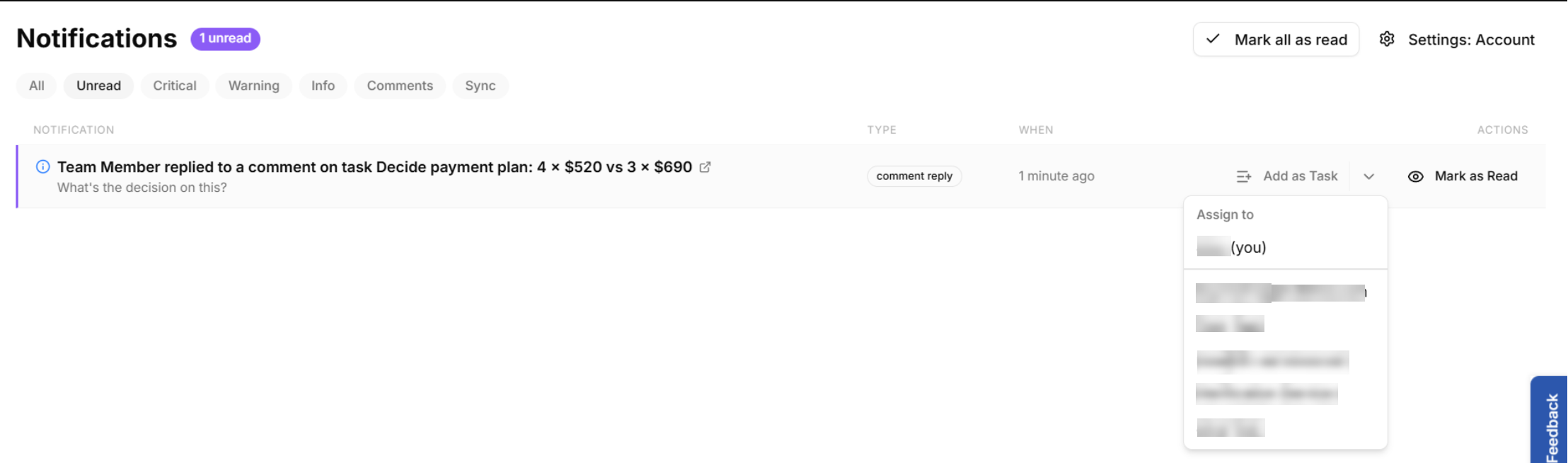
Select Add as Task on the notification.
Optionally use Assign to to hand it to a teammate.
Select View tasks to open the task list.
The notification is then labelled tasked, and the work lives in Tasks with a status, a priority, an assignee and a due date. See "Tasks" in Settings & Team.
Assigning a notification as a task