A dashboard you build
The dashboard is a grid of widgets rather than a fixed report. The first time you open it, KeyMetriq seeds a starter set of widgets based on your role, so you see something useful before you configure anything.
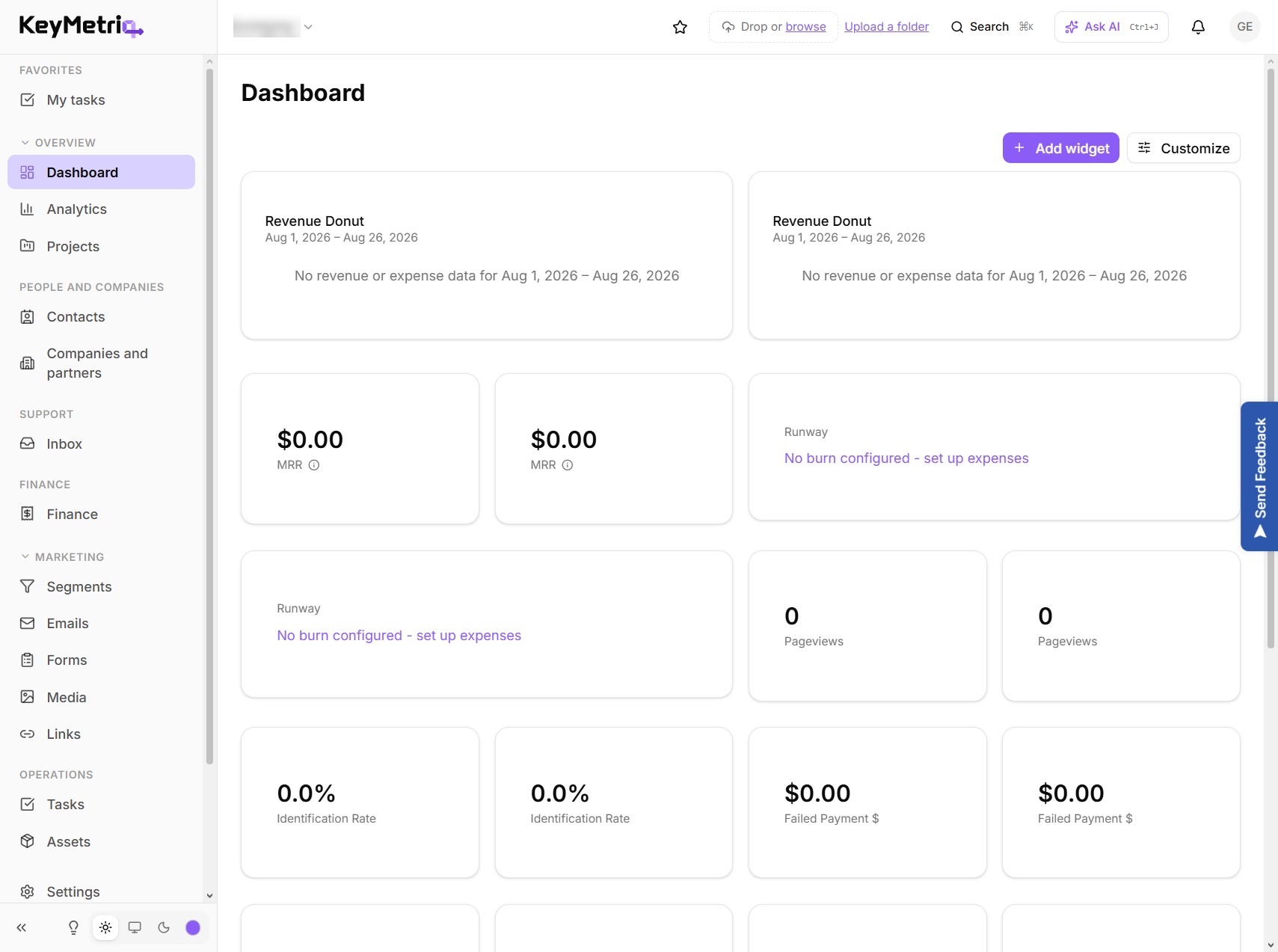
Adding widgets
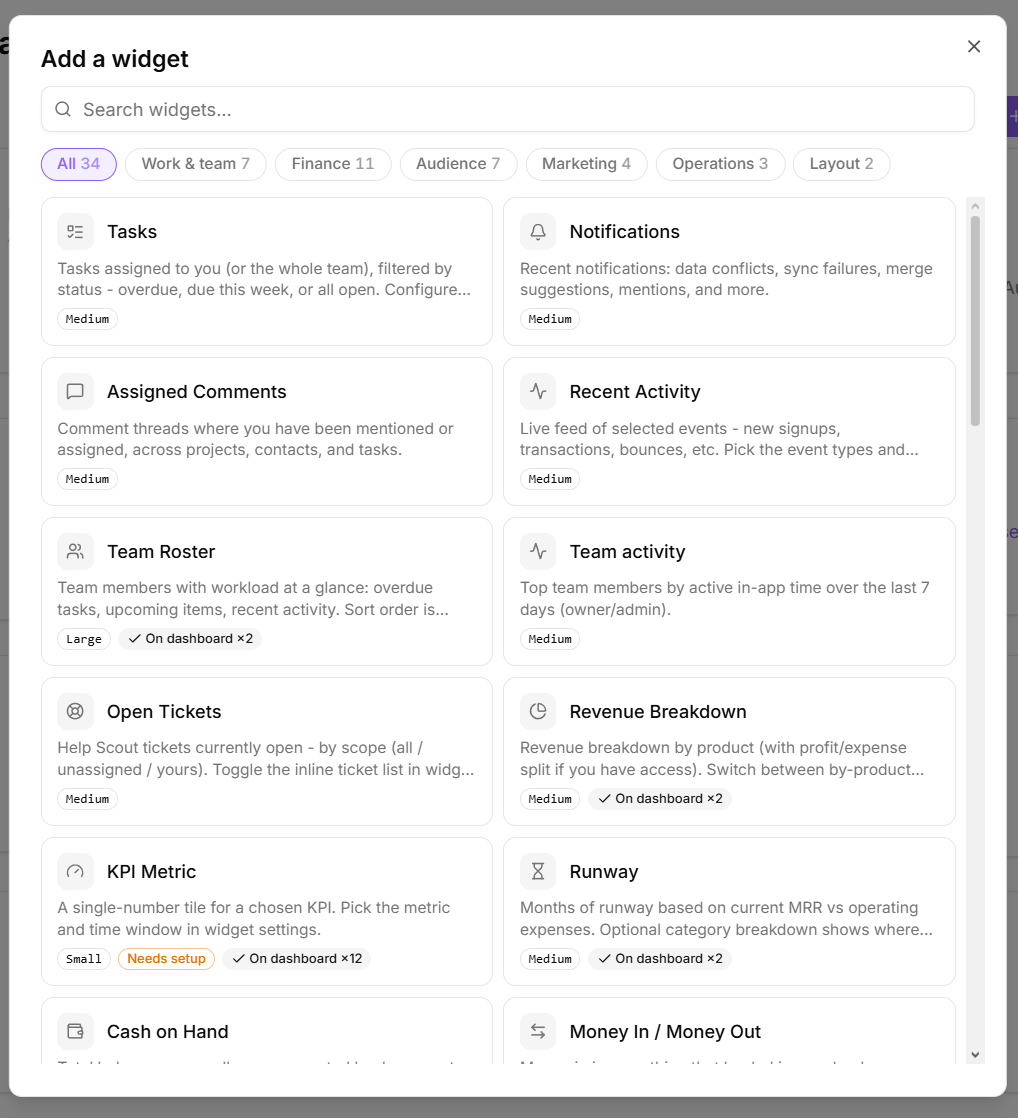
- Select Customize to open the widget manager.
- Select Add Widget and pick from the gallery, or choose one of the Starter Packs to add a themed group at once. Packs include Inbox, Support, Marketing, Sales, Financial, Admin, Business digest and Web shop.
- Select Add.
Widgets you have no permission for, or that belong to a feature switched off in your workspace, do not appear in the gallery.
Arranging the grid
Drag a widget by its handle to reorder the grid. In the widget manager you can Hide a widget without deleting it, or Show it again later.
Each widget has its own settings. Common ones are:
- Size: Small, Medium, Large or Full. Dividers and spacers have no size setting.
- Hide when empty, so a widget with nothing to report disappears instead of showing a blank card. This setting appears only on the widget types that can report nothing to show: Segment Stat, Calculated Metric, Mini Funnel, Upcoming Renewals and Birthdays.
- Start new row, to force a line break in the grid.
- Date range, on widgets that report over a period.
- Remove Widget.
Some widget types add their own settings, such as which segment or metric to show, or a custom label to override the default title.
Tabs
Until you create your first tab there is no tab bar on the dashboard, so everything sits on one grid. You create that first tab from the widget manager: select Customize, then New tab, and name it.
Once a tab exists, a bar appears above the grid with an Overview pill, your tabs, and a New tab button for any further ones. Move a widget to a tab from its settings, so you can keep, for example, marketing numbers separate from finance. Tab options let you rename a tab, move it left or right, or delete it. Deleting a tab does not delete its widgets: they move back to Overview.
Starting over
Restore Defaults in the widget manager puts your dashboard back to the starter pack for your role. It asks for confirmation first, then replaces every widget you have with the default set, straight away. The layout you had is discarded and cannot be recovered, so if you only want to lose one widget, remove that widget instead.
The default set is the same one a new account gets, chosen from your role and what your workspace has access to, so it is not necessarily the set you started with months ago. Any tabs you created stay where they are; the restored widgets land on Overview.
Your dashboard is yours alone. Changing it does not change what your teammates see.