Send an invitation
Go to Settings and open the Team tab.
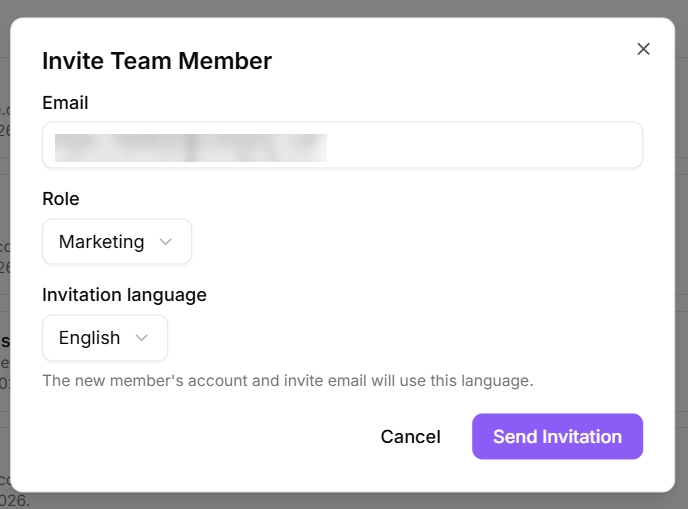
On App Users, select Invite Member.
Enter the person's Email.
Choose a Role. The role decides what they can see and do, so pick the narrowest one that fits. See "Team members and roles" in Settings & Team for what each role covers.
Choose an Invitation language. Their account and the invite email both use it.
Select Send Invitation.
Inviting a team member
What your colleague sees
They get an email with an invitation link. Opening it asks them to choose a password of at least 8 characters and confirm it, then joins them to your workspace and drops them on the dashboard. They do not sign up separately, and they do not need approval: the invitation is the approval.
If they try an invitation that has already been used, they see an Invitation Already Used message. If it has expired, they see Invitation Expired and need a fresh one from you.
Pending invitations
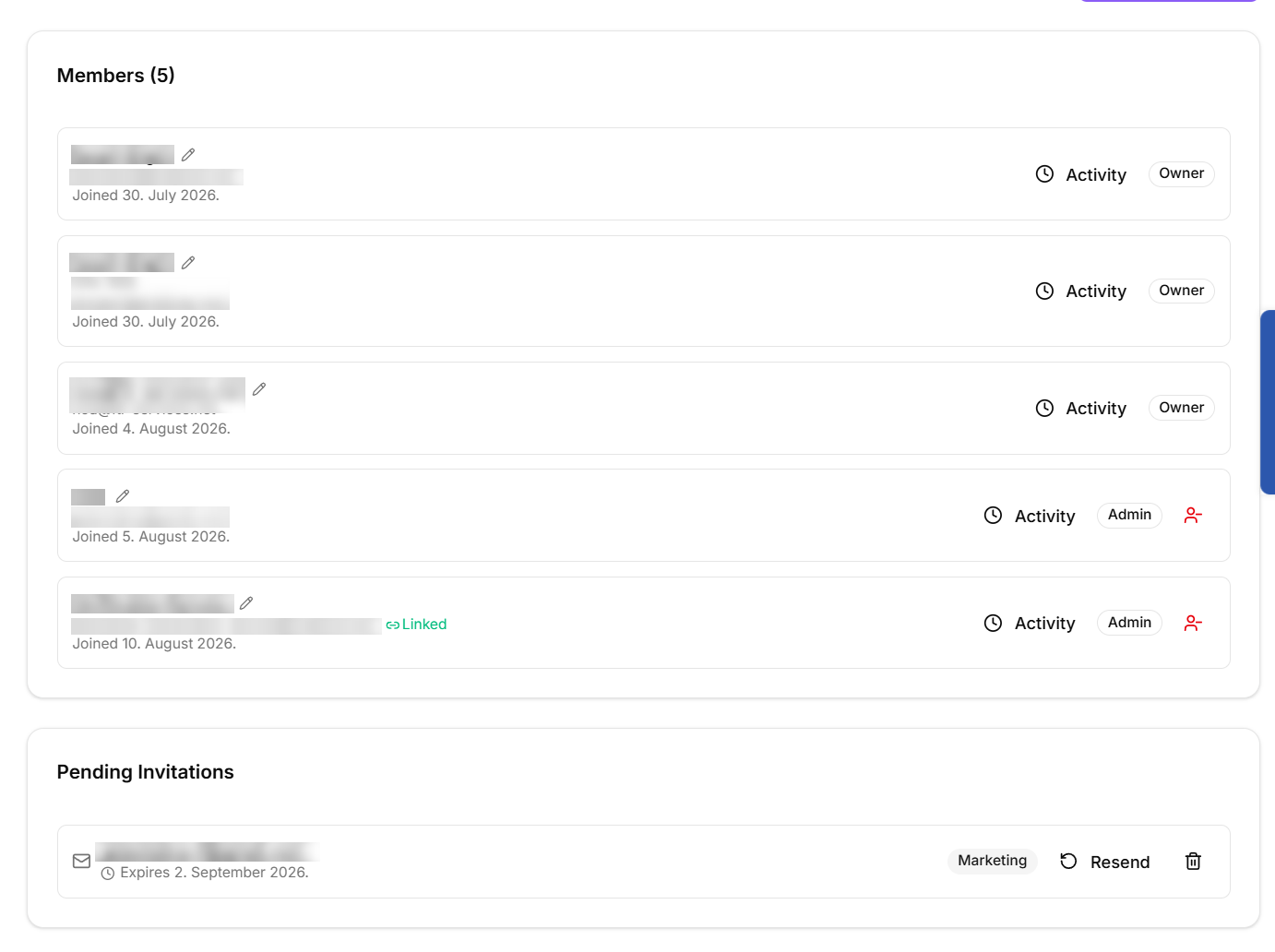
Invitations you have sent but nobody has accepted appear under Pending Invitations with their expiry date, or an Expired badge once they lapse. Select Resend to send the email again.
Changing a role or removing someone
In the Members list, change a member's role from the role control on their row. Promoting someone to Owner gives them full access to manage the workspace, including changing other members' roles, so KeyMetriq asks you to confirm.
Removing a member takes them out of your organization. If that was their only organization, their account is deleted along with it, so remove with care.